How to Use Lion OTT IPTV Firestick with Perfect Player
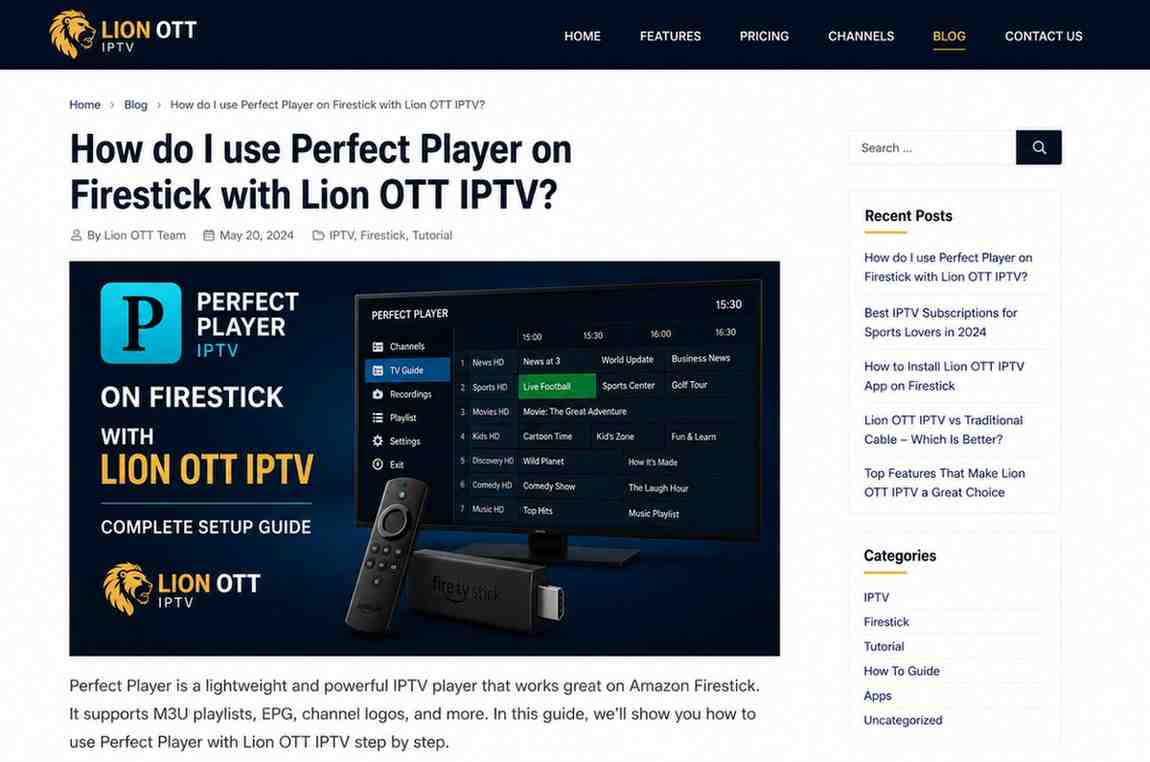
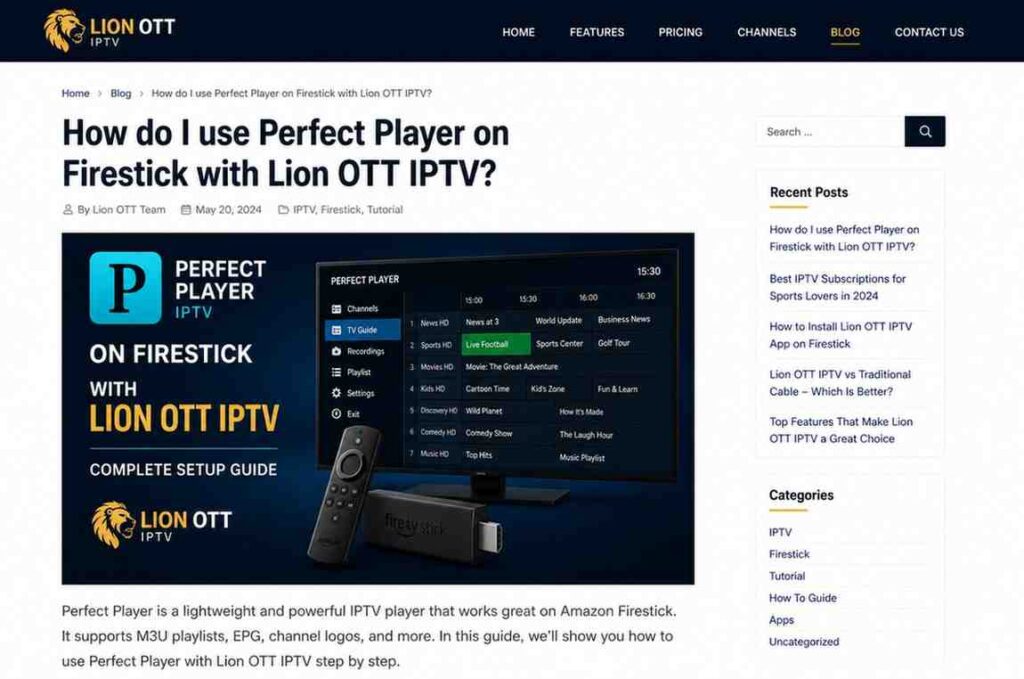
If you’ve got a Firestick and a Lion OTT IPTV Firestick subscription, you’re already halfway to a powerful streaming setup. The missing piece? A reliable IPTV player—and Perfect Player is one of the best lightweight options available for Lion OTT IPTV Firestick users.
It’s fast, stable, and works especially well on devices like Firestick where performance matters. But here’s the catch: it’s not the most beginner-friendly app. The interface is simple, but the setup requires a few specific steps to get the most out of your Lion OTT IPTV Firestick.
Don’t worry—we’ll walk through everything in a clear, practical way so you can get it working without frustration.
Why Use Perfect Player for Lion OTT IPTV Firestick?
Before jumping into setup, it’s worth understanding why so many users still choose Perfect Player.
Lightweight Performance
Firestick devices don’t have unlimited power. Perfect Player is designed to run smoothly even on older models.
Strong EPG Support
It supports XMLTV EPG formats, which means you can load a full TV guide for your Lion OTT IPTV channels.
Customizable Layout
You can adjust how channels and guides are displayed, making it easier to navigate.
External Player Support
If you prefer VLC or MX Player, Perfect Player lets you integrate them easily.
What You Need Before You Start
To set everything up, you’ll need a few things ready:
- A Firestick device
- Stable internet connection
- Lion OTT IPTV login details (M3U URL or Xtream Codes)
- EPG URL (provided by your IPTV service)
Having these ready will make the process much smoother.
Step 1: Install Perfect Player on Firestick
Perfect Player isn’t always available directly in the Amazon App Store, so you may need to sideload it.
Here’s how:
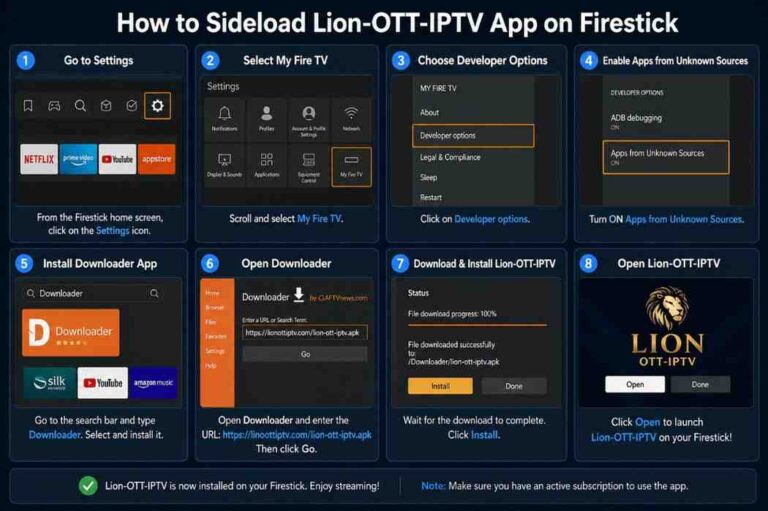
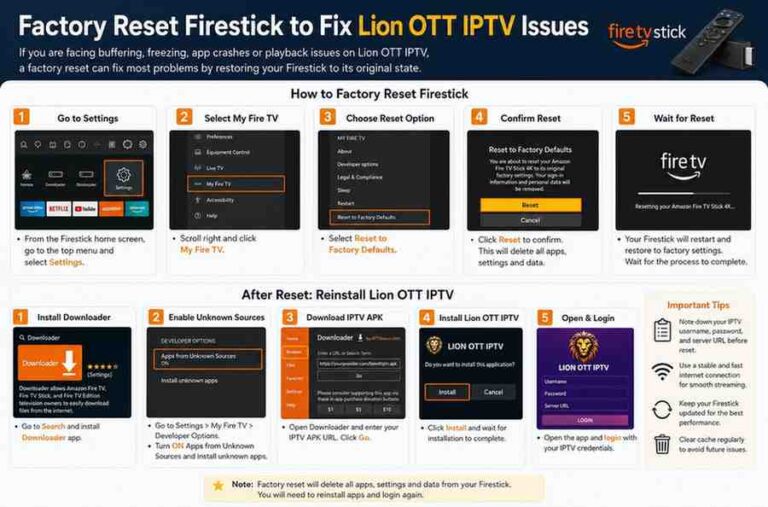
- Go to Settings on your Firestick
- Select My Fire TV
- Click Developer Options
- Enable Apps from Unknown Sources
- Install the Downloader app
- Open Downloader and enter the APK URL for Perfect Player
- Download and install
Once installed, you’ll see Perfect Player in your apps list.
Step 2: Open Perfect Player and Configure Settings
When you open the app for the first time, it will look empty. That’s normal—you haven’t added your IPTV details yet.
Adjust Basic Settings:
- Go to Settings
- Select General
- Choose your preferred language
- Adjust interface options if needed
Step 3: Add Lion OTT IPTV Playlist
Now it’s time to connect your IPTV service.
Using M3U URL:
- Go to Settings
- Select General
- Click Playlist
- Enter your Lion OTT IPTV M3U URL
- Save
Using Xtream Codes (if supported):
Perfect Player mainly uses M3U, so if you have Xtream Codes, convert them into an M3U link if needed.
Step 4: Add EPG (Electronic Program Guide)
This is where your experience improves significantly.
Steps:
- Go to Settings
- Select EPG
- Enter your EPG URL
- Save and refresh
Once loaded, you’ll see channel schedules and program details.
Step 5: Refresh and Load Channels
After adding playlist and EPG:
- Return to the main screen
- Press refresh
- Wait for channels to load
You should now see your full Lion OTT IPTV channel list.
Navigating Perfect Player on Firestick
The interface may look simple, but it’s efficient.
Key Controls:
- Left/right: Change channels
- Up/down: Browse list
- OK button: Select channel
- Menu button: Open settings
Once you get used to it, navigation becomes very fast.
Tips to Improve Performance
Want smoother streaming? These tips help:
Use External Player
Apps like VLC or MX Player can improve playback quality.
Keep Playlist Updated
Outdated playlists can cause missing channels.
Clear Cache
If the app slows down, clear cache in Firestick settings.
Restart Firestick
A simple restart often fixes performance issues.
Common Problems and Fixes
Even with a good setup, issues can happen.
Channels Not Loading
- Check M3U URL
- Re-enter playlist
EPG Not Showing
- Verify EPG URL
- Refresh manually
Buffering Issues
- Check internet speed
- Try external player
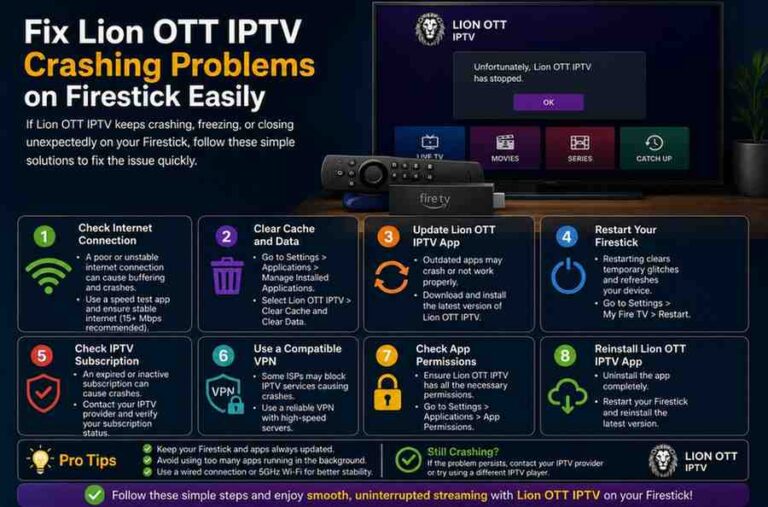
App Crashing
- Clear cache
- Reinstall app
Perfect Player vs Other IPTV Apps
Let’s quickly compare.
Perfect Player
- Lightweight
- Stable
- Slightly outdated UI
IPTV Smarters Pro
- Beginner-friendly
- Modern design
- Slightly heavier
TiviMate
- Best UI and EPG
- Premium features
- Not fully free
Perfect Player wins when performance is your priority.
Is Perfect Player Still Worth It in 2026?
Short answer: yes.
Even with newer apps available, Perfect Player remains a solid choice—especially for Firestick users who want speed and stability over flashy design.
Final Thoughts
Using Perfect Player on Firestick with Lion OTT IPTV isn’t complicated once you understand the steps. It may not have the most modern interface, but it delivers where it matters: performance, stability, and reliable playback.
If you want a no-nonsense IPTV experience that just works, Perfect Player is still one of the best options out there.
Take a few minutes to set it up properly, and you’ll have a smooth, cable-like streaming experience right from your Firestick.