Sideload Lion-OTT-IPTV on Firestick (Step-by-Step Guide)
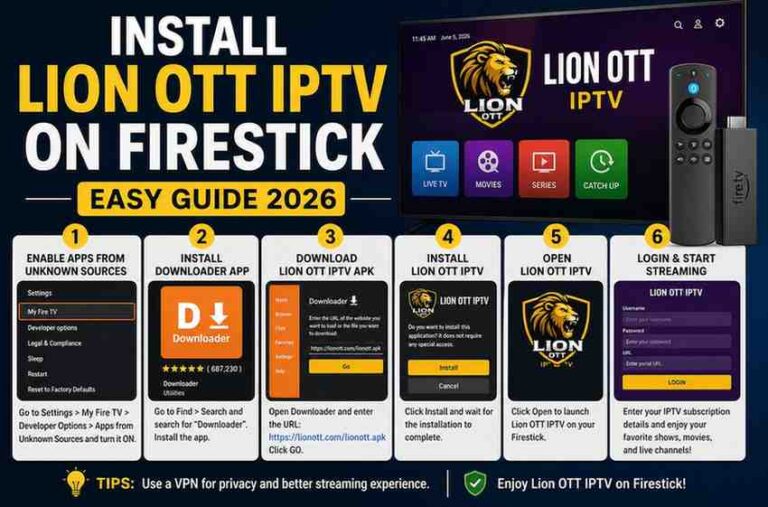
Streaming has evolved rapidly, and devices like the Amazon Fire TV Stick have made it easier than ever to access a wide range of content. However, not every app is available in the Amazon Appstore, which is why many users choose to install Lion OTT IPTV on Firestick through sideloading.
In this step-by-step guide, you’ll learn how to install Lion OTT IPTV on Firestick quickly and easily, even if you’re new to the process. We’ll also cover setup tips, troubleshooting solutions, and best practices to help you enjoy a smooth streaming experience.
What is Sideloading on Firestick?
Sideloading is the process of installing applications from outside the official Amazon Appstore. Since Amazon restricts certain apps, sideloading allows you to manually install APK files.
This is especially useful for IPTV apps like Lion-OTT-IPTV, which often require manual installation.
Is Sideloading Safe?
Sideloading itself is safe—but it depends on where you download your APK file.
To stay safe:
- Only download APKs from trusted sources
- Avoid modified or “cracked” versions
- Keep your device updated
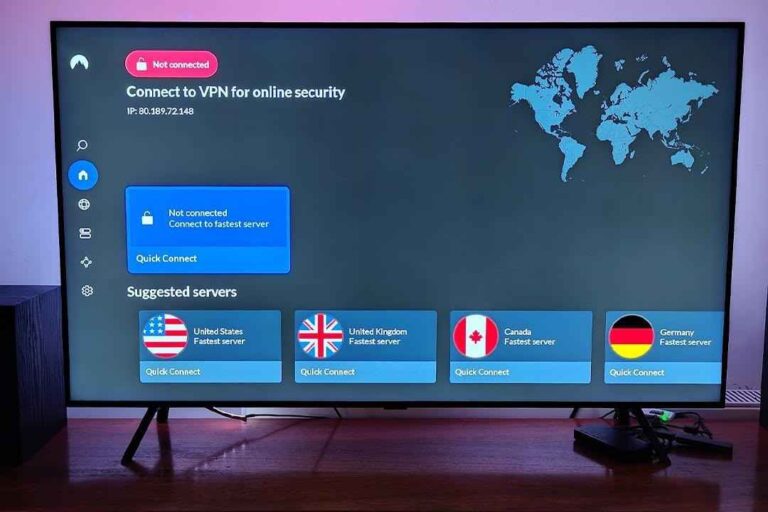
- Use a VPN if privacy is a concern
Requirements Before You Start
Before installing Lion-OTT-IPTV, make sure you have:
- A Firestick device connected to your TV
- Stable internet connection
- IPTV subscription credentials (M3U or Xtream Codes)
- The Downloader app
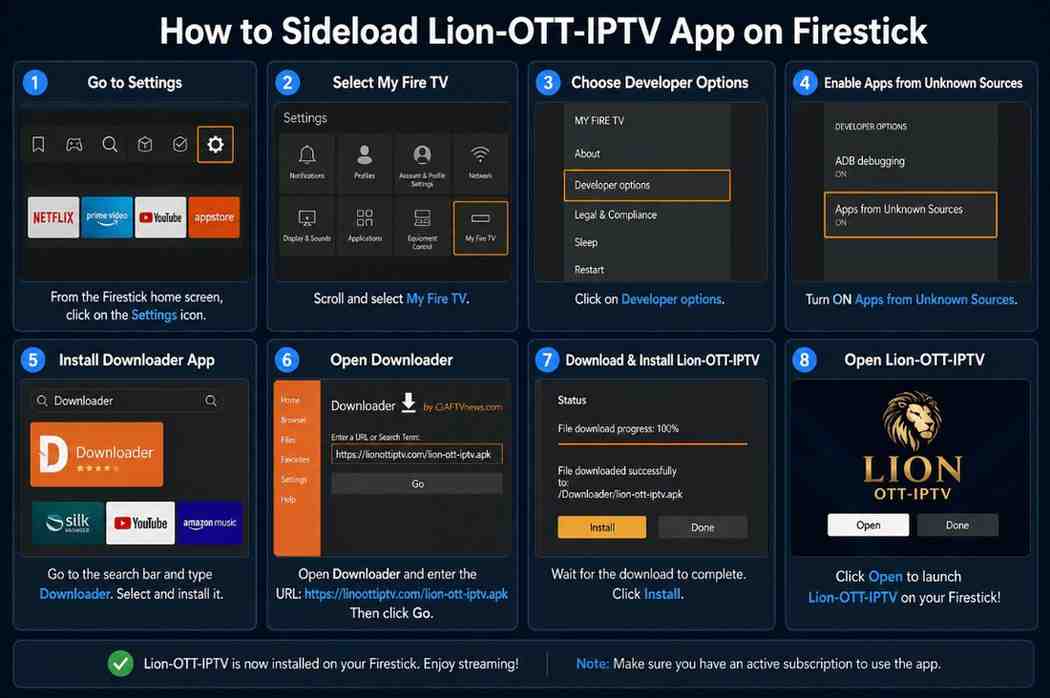
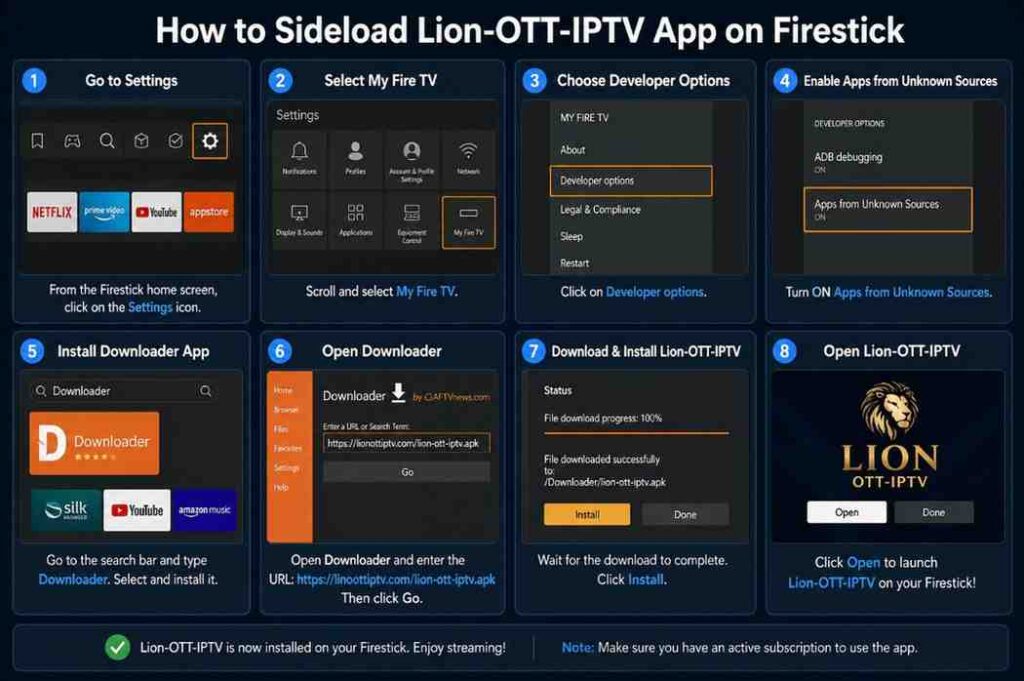
Step 1: Enable Developer Options
By default, Firestick blocks third-party apps. You’ll need to enable installation permissions.
Steps:
- Go to Settings
- Select My Fire TV
- Click About
- Select your Fire TV device name repeatedly (about 7 times)
- You’ll see: “You are now a developer”
- Go back and open Developer Options
- Turn ON:
- ADB Debugging
- Apps from Unknown Sources
This step is essential—without it, sideloading won’t work.
Step 2: Install Downloader App
The Downloader app is the easiest way to install APK files on Firestick.
Steps:
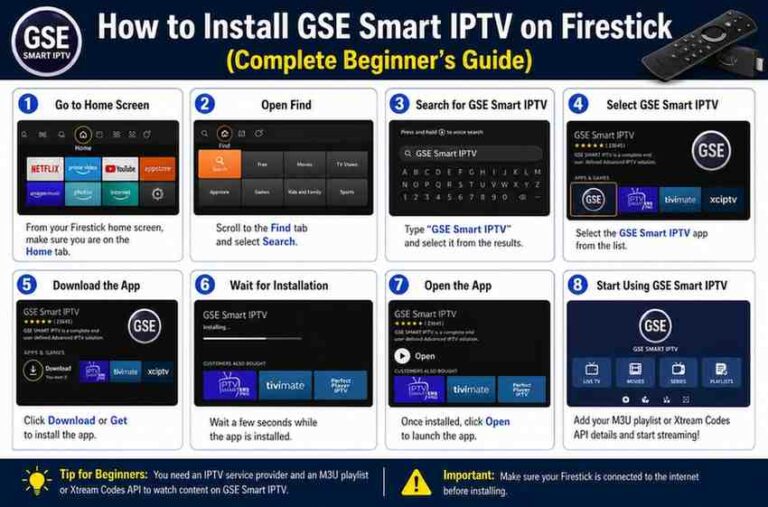
- Go to the Firestick home screen
- Select Find → Search
- Type Downloader
- Select the app and install it
Once installed, open it and allow all permissions.
Step 3: Download Lion-OTT-IPTV APK
Now you’ll download the APK file directly onto your Firestick.
Steps:
- Open Downloader
- In the URL field, enter the APK link provided by your IPTV service
- Click Go
- Wait for the download to complete
Always ensure the URL is correct and from a trusted provider.
Step 4: Install the APK
Once the file is downloaded:
- The installation screen will appear automatically
- Click Install
- Wait for installation to finish
- Click Done or Open
The app is now installed on your Firestick.
Step 5: Delete APK File (Recommended)
APK files take up unnecessary storage after installation.
To delete:
- Click Delete when prompted in Downloader
- Confirm deletion
This helps keep your Firestick running smoothly.
Step 6: Launch Lion-OTT-IPTV
To open the app:
- Go to Your Apps & Channels
- Scroll down and find Lion-OTT-IPTV
- Open the app
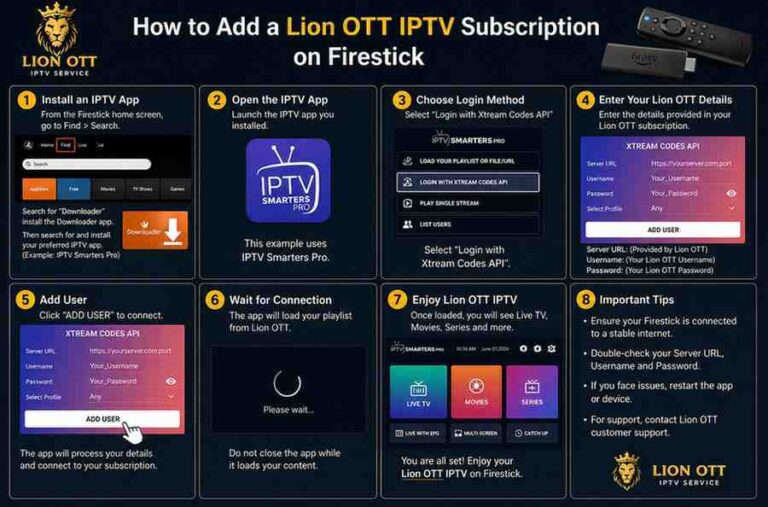
Step 7: Set Up IPTV
After launching the app, you’ll need to log in.
You’ll typically need:
- M3U Playlist URL, or
- Xtream Codes API (username, password, server URL)
Enter your credentials carefully and load the content.
Features of Lion-OTT-IPTV
While features may vary depending on your provider, most IPTV apps offer:
- Live TV streaming
- Video on Demand (VOD)
- Electronic Program Guide (EPG)
- Multi-screen support
- Favorites and playlists
Tips for Better Streaming Performance
To get the best experience:
1. Use a Strong Internet Connection
- Minimum 10 Mbps recommended
- Use Ethernet adapter if possible
2. Clear Cache Regularly
- Go to Settings → Applications → Manage Installed Apps
- Clear cache for IPTV app
3. Use a VPN (Optional)
A VPN can:
- Improve privacy
- Avoid ISP throttling
- Access geo-restricted content
Common Issues & Fixes
1. App Not Installing
Fix:
- Ensure “Apps from Unknown Sources” is enabled
- Restart Firestick
2. APK Not Downloading
Fix:
- Check URL for errors
- Verify internet connection
3. App Crashing
Fix:
- Clear cache
- Reinstall the app
- Ensure you have the latest version
4. Buffering Issues
Fix:
- Check internet speed
- Reduce stream quality
- Restart router
Legal Disclaimer
IPTV apps themselves are legal, but the content you access may not always be.
Make sure:
- You have the right to stream the content
- Your IPTV provider is legitimate
Always follow local laws and regulations.
Advantages of Using Firestick for IPTV
The Amazon Fire TV Stick is one of the best devices for IPTV because:
- Affordable and portable
- Easy to use interface
- Supports sideloading
- Compatible with many IPTV apps
Final Thoughts
Sideloading Lion-OTT-IPTV on Firestick is a straightforward process once you know the steps. By enabling developer options, using the Downloader app, and installing the APK file, you can unlock a much wider range of streaming possibilities.
Take your time during setup, ensure your sources are trustworthy, and optimize your device for the best performance.