Use Ethernet Adapter with Firestick for Lion OTT IPTV
If you’re using Lion OTT IPTV on your Firestick and dealing with annoying buffering, sudden drops, or inconsistent video quality, you’re definitely not alone. Many users turn to a Firestick Ethernet Adapter IPTV setup to improve streaming stability and reduce interruptions. It’s one of the most common frustrations IPTV users face—and surprisingly, the issue often isn’t your subscription or even your internet speed.
In many cases, the real problem is WiFi instability, which is why a Firestick Ethernet Adapter IPTV connection can be a game-changer for better performance.
That’s where using an Ethernet adapter with your Firestick can make a night-and-day difference. A Firestick Ethernet Adapter IPTV setup removes many of the weak points of wireless streaming and gives you a smoother, more reliable IPTV experience.
Choosing the right Firestick Ethernet Adapter IPTV solution can help reduce buffering, improve speed consistency, and deliver better video quality.
In this guide, we’ll walk through everything step by step so you can set up your Firestick Ethernet Adapter IPTV connection without technical confusion and enjoy a better Lion OTT IPTV experience.
Why Lion OTT IPTV Needs a Stable Connection
IPTV services like Lion OTT rely on continuous data streaming. Unlike downloading a file, where pauses don’t matter much, IPTV needs a steady flow of data in real time.
If your connection fluctuates—even slightly—you might notice:
- Buffering circles at random moments
- Channels taking too long to load
- Sudden drops in video quality
- Streams freezing during live events
WiFi, while convenient, is more prone to these fluctuations. Ethernet solves this by giving your Firestick a direct, uninterrupted connection to your router.
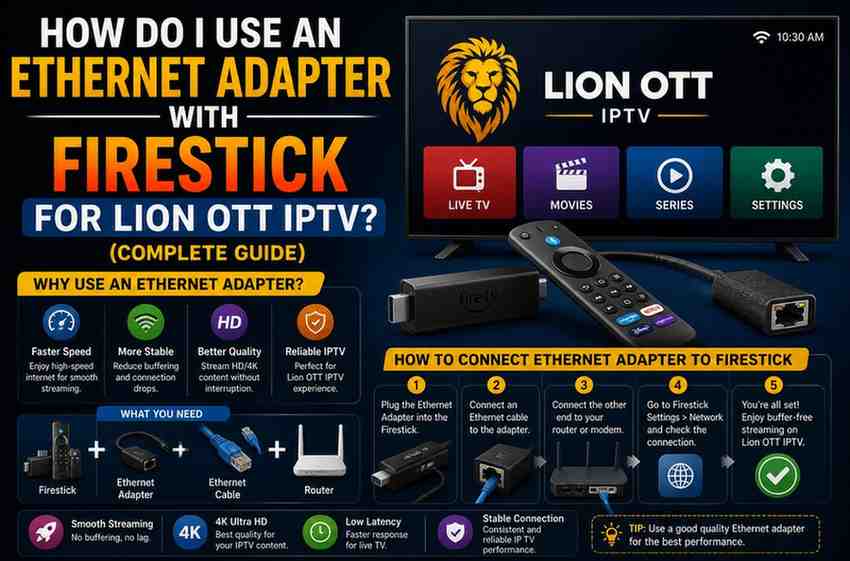
What Is an Ethernet Adapter for Firestick?
Firestick devices don’t come with an Ethernet port built in. So to connect a wired internet cable, you need a small accessory called an Ethernet adapter.
It works like this:
- One end connects to your Firestick
- One port connects to an Ethernet cable
- Another connection provides power
Think of it as a bridge that allows your Firestick to use wired internet instead of WiFi.
What You’ll Need Before Setup
Before you begin, make sure you have everything ready:
- Your Firestick device
- A compatible Ethernet adapter
- A working Ethernet cable
- Access to your WiFi router
- A power source
Once you have these, setup is quick and straightforward.
Step-by-Step Setup for Ethernet on Firestick
Let’s go through the process in the simplest way possible.
Step 1: Connect Ethernet Cable to Router
Plug one end of your Ethernet cable into your router.
Step 2: Connect Cable to Adapter
Insert the other end of the Ethernet cable into the Ethernet port on your adapter.
Step 3: Plug Adapter into Firestick
Connect the adapter’s USB cable to your Firestick.
Step 4: Connect Power Supply
Most adapters require power. Plug the power cable into an outlet.
Step 5: Turn On Your Firestick
Once everything is connected, power on your Firestick and let it boot up.
Does Firestick Automatically Switch to Ethernet?
Yes, in most cases it does.
Firestick automatically detects a wired connection and prioritizes it over WiFi. You don’t usually need to change any settings manually.
To confirm:
- Go to Settings
- Select Network
- Check connection status
If Ethernet is working, you’ll see a wired connection instead of your WiFi network.
Why Ethernet Improves Lion OTT IPTV Performance
Once you switch to Ethernet, the difference becomes obvious—especially with IPTV.
1. Stable Streaming
No more random drops in connection. Streams stay consistent.
2. Reduced Buffering
Data flows smoothly, reducing interruptions during playback.
3. Better HD and 4K Quality
Higher-quality streams need stable bandwidth, which Ethernet delivers.
4. Faster Channel Switching
Channels load quicker with less delay.
Ethernet vs WiFi for Lion OTT IPTV
Let’s look at a real comparison.
WiFi
- Convenient and wireless
- Affected by walls and interference
- Speed can fluctuate
Ethernet
- Direct connection
- Consistent speeds
- Minimal interference
For IPTV, consistency matters more than peak speed. That’s why Ethernet is often the better choice.
Common Problems and Easy Fixes
Even though setup is simple, things don’t always go perfectly. Here’s how to fix common issues.
Ethernet Not Working
- Restart your Firestick
- Reconnect cables securely
- Ensure adapter compatibility
No Internet After Connection
- Restart your router
- Try another Ethernet cable
- Test internet on another device
Slow Performance
- Check your internet speed plan
- Replace damaged cables
- Avoid low-quality adapters
Best Ethernet Adapter Features to Look For
Not all adapters are created equal. Choosing the right one matters.
Look for:
- Compatibility with Firestick
- Reliable power support
- Stable connection performance
- Good build quality
Avoid very cheap adapters—they often cause more problems than they solve.
Does Ethernet Increase Internet Speed?
This is a common misunderstanding.
Ethernet doesn’t increase your internet speed—but it helps you use your full available speed more consistently.
With WiFi:
- Speed may drop due to interference
With Ethernet:
- You get closer to your actual internet speed
Real-Life Example: WiFi vs Ethernet
Imagine watching a live cricket match on Lion OTT.
Using WiFi
- Stream buffers occasionally
- Quality drops during peak times
- Delay when switching channels
Using Ethernet
- Smooth playback
- Consistent HD quality
- Instant channel switching
That difference is exactly why many IPTV users switch to wired connections.
When Ethernet Might Not Be Practical
Even though Ethernet is better, it’s not always convenient.
You might face challenges like:
- Router being far away
- Difficulty running cables
- Limited space for setup
In such cases, optimizing WiFi (like using 5GHz) is still a good alternative.
Tips to Get the Best IPTV Experience
Whether you use Ethernet or WiFi, these tips will help:
- Restart your Firestick regularly
- Keep apps updated
- Avoid running too many apps in background
- Use a reliable IPTV player
- Ensure your internet plan supports HD/4K streaming
Does Ethernet Help with Live Channels More?
Yes—especially for live IPTV.
Live streams are more sensitive to interruptions than on-demand content. Even a small lag can cause buffering.
Ethernet ensures:
- Smooth live playback
- Fewer interruptions
- Better overall viewing experience
How Lion OTT IPTV Benefits Specifically
Lion OTT IPTV often includes:
- Live TV channels
- Sports events
- High-definition streams
These features require a stable connection. Ethernet helps maintain that stability, making your viewing experience much more enjoyable.
Is It Worth Using Ethernet for Firestick IPTV?
If you’re serious about IPTV, the answer is yes.
You should consider Ethernet if:
- You experience frequent buffering
- Your WiFi signal is weak
- You stream HD or 4K regularly
- You want consistent performance
Final Thoughts
Using an Ethernet adapter with your Firestick for Lion OTT IPTV is one of the easiest upgrades you can make. It doesn’t require technical expertise, doesn’t cost much, and can dramatically improve your streaming experience.
While WiFi is convenient, it simply can’t match the reliability of a wired connection—especially for something as demanding as IPTV.
Conclusion
IPTV streaming depends on stability more than anything else. Even with a fast internet plan, WiFi can introduce small inconsistencies that lead to buffering and frustration.
By switching to an Ethernet adapter, you eliminate many of those issues and create a smoother, more reliable setup for Lion OTT IPTV.
It’s a simple change—but one that can completely transform how you watch your favorite channels.