Factory Reset Firestick to Fix Lion OTT IPTV Issues
Streaming IPTV services through Firestick devices has become incredibly popular because it offers easy access to live TV channels, sports, movies, and on-demand entertainment. Among many IPTV apps available today, Lion OTT IPTV is widely used by Firestick users for streaming high-quality content. Many users look for ways to Reset Firestick IPTV Issues when dealing with buffering or app crashes. Learning how to Reset Firestick IPTV Issues can help improve streaming performance and fix software problems. Following the correct steps to Reset Firestick IPTV Issues may restore smooth and stable IPTV playback on your Firestick device.
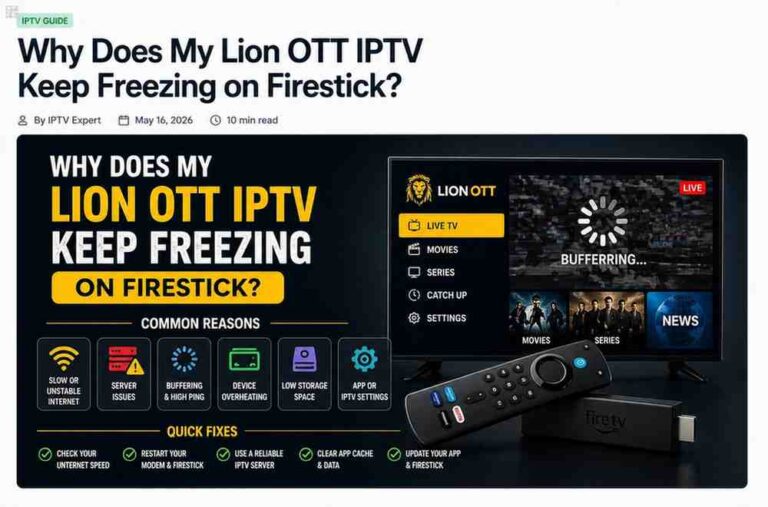
Why Firestick Problems Affect IPTV Streaming
Before performing a reset, it is important to understand why IPTV apps stop working correctly.
Cache Overload
Firestick apps store temporary files called cache to improve loading speed. Over time, these files become corrupted and affect IPTV playback.
Limited Storage Space
Firestick devices have limited internal storage. Too many installed apps and temporary files slow down performance.
Software Conflicts
Outdated apps, incompatible updates, or failed installations can create system conflicts that affect IPTV streaming.
Background Applications
Too many background processes consume memory and reduce streaming performance.
Corrupted IPTV Data
Improper app updates or interrupted installations may damage IPTV application files.
Signs You Need to Factory Reset Firestick
You should consider resetting your Firestick if you experience:
- Constant buffering
- App freezing
- Black screens
- IPTV channels not loading
- Audio synchronization problems
- Firestick lagging heavily
- Apps crashing repeatedly
- Login failures
- Storage remaining full after cleanup
- Failed software updates
If these problems continue after regular troubleshooting, a factory reset is usually the best solution.
Important Things to Know Before Resetting
Factory resetting removes everything stored on the Firestick.
What Gets Deleted
The reset erases:
- Installed apps
- IPTV applications
- Login credentials
- Wi-Fi settings
- Downloaded APK files
- Cached data
- Saved preferences
Save IPTV Information First
Before resetting, write down:
- IPTV username
- Password
- Server URL
- Activation code
You will need these details after reinstalling Lion OTT IPTV.
Ensure Stable Power Connection
Do not unplug the Firestick during reset because interruption may damage the system.
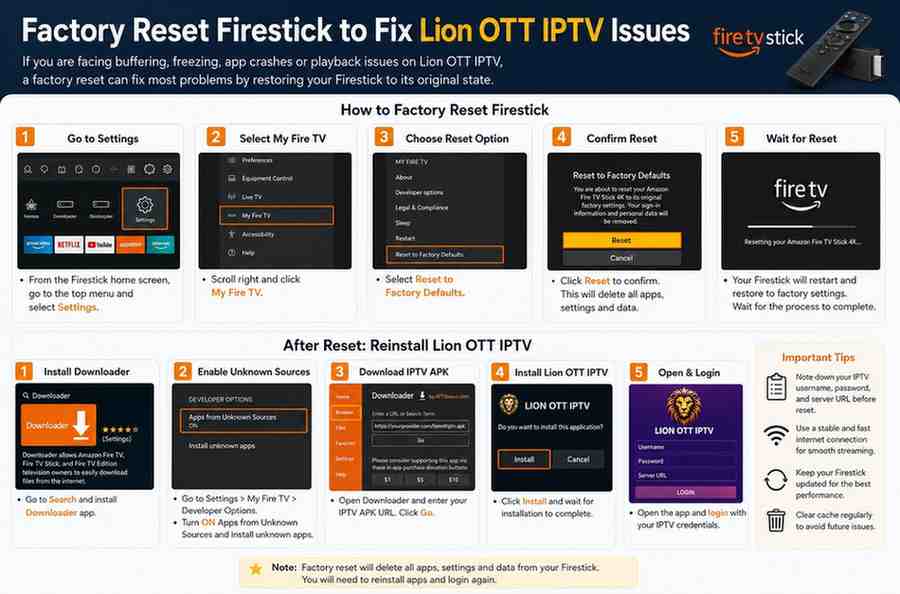
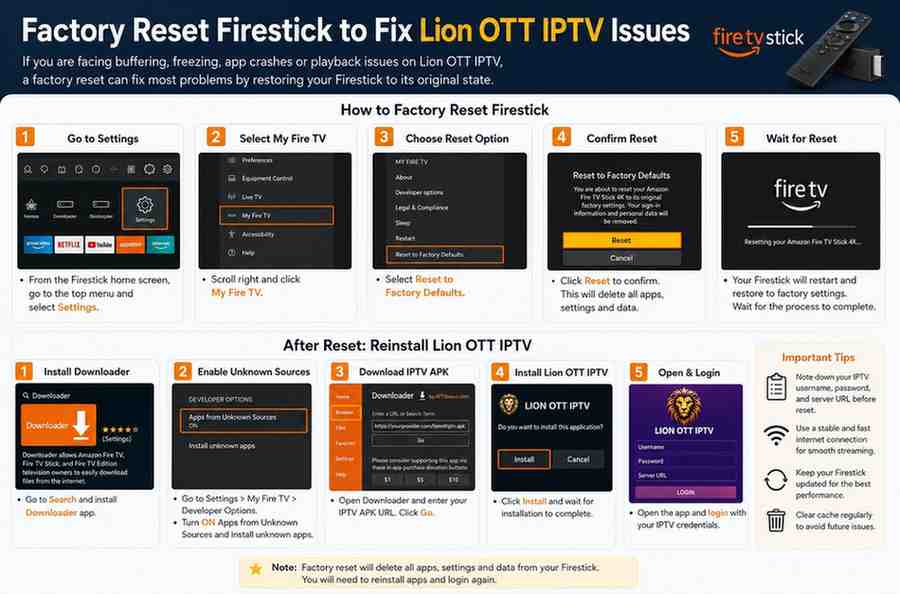
Method 1: Factory Reset Firestick Through Settings
This is the safest and easiest reset method.
Step 1: Open Firestick Settings
Turn on your Firestick and navigate to the top menu.
Select:
Settings
Step 2: Open My Fire TV
Scroll right and click:
My Fire TV
Depending on your Firestick model, this section may also appear as:
- Device
- System
Step 3: Select Reset Option
Choose:
Reset to Factory Defaults
Step 4: Confirm Reset
A warning screen appears explaining that all apps and settings will be erased.
Click:
Reset
Step 5: Wait for Reset Completion
Your Firestick will:
- Restart automatically
- Erase all data
- Restore factory settings
The process usually takes:
- 5 to 10 minutes
Do not disconnect power during this time.
Method 2: Factory Reset Firestick Without Settings Menu
If your Firestick freezes or the menu does not open, use the remote shortcut method.
Remote Reset Steps
- Press and hold:
- Back button
- Right directional button
- Hold both buttons for about 10 seconds
- The reset confirmation screen appears
- Select:
Reset
The device will now begin factory reset automatically.
What Happens After Factory Reset
Once reset completes, Firestick returns to first-time setup mode.
You will need to:
- Select language
- Connect to Wi-Fi
- Sign into Amazon account
- Update Fire OS
- Reinstall applications
How to Reinstall Lion OTT IPTV After Reset
Since the reset removes all apps, Lion OTT IPTV must be installed again.
Step 1: Install Downloader App
Downloader is commonly used for installing IPTV APK files.
Installation Steps
- Open Firestick home screen
- Select search icon
- Type:
Downloader
- Install the app
Step 2: Enable Unknown Sources
Firestick blocks third-party APK installations by default.
Enable Installation Permissions
- Open Settings
- Select My Fire TV
- Click Developer Options
- Enable:
- Apps from Unknown Sources
- Install Unknown Apps for Downloader
Step 3: Download Lion OTT IPTV APK
- Open Downloader
- Enter the APK URL provided by your IPTV service provider
- Click Go
- Wait for download completion
Step 4: Install IPTV App
Once downloading finishes:
- Click Install
- Wait for installation
- Select Open
Step 5: Login to IPTV Account
Enter:
- Username
- Password
- Server URL
Your IPTV channels should now load normally again.
How Factory Reset Improves IPTV Performance
Many users notice major improvements immediately after resetting.
Faster Navigation
Removing unnecessary files improves Firestick speed and menu responsiveness.
Reduced Buffering
Corrupted system files and overloaded cache often contribute to buffering problems.
Better App Stability
Fresh installations eliminate damaged app data.
Improved Storage Management
Resetting clears hidden storage files and temporary system data.
Additional Tips After Resetting Firestick
To keep Lion OTT IPTV running smoothly after reset, follow these maintenance tips.
Keep Firestick Updated
Amazon regularly releases system updates that improve performance.
Check for Updates
- Settings
- My Fire TV
- About
- Check for Updates
Clear Cache Regularly
Large cache files can slow streaming.
How to Clear Cache
- Settings
- Applications
- Manage Installed Applications
- Select Lion OTT IPTV
- Click Clear Cache
Avoid Installing Too Many Apps
Too many installed apps consume storage and memory.
Only keep apps you actually use.
Restart Firestick Weekly
Restarting clears temporary memory and refreshes the operating system.
Use Fast Internet Connection
Stable internet is essential for IPTV streaming.
Recommended Speeds
- SD streaming: 10 Mbps
- HD streaming: 20 Mbps
- 4K streaming: 40 Mbps+
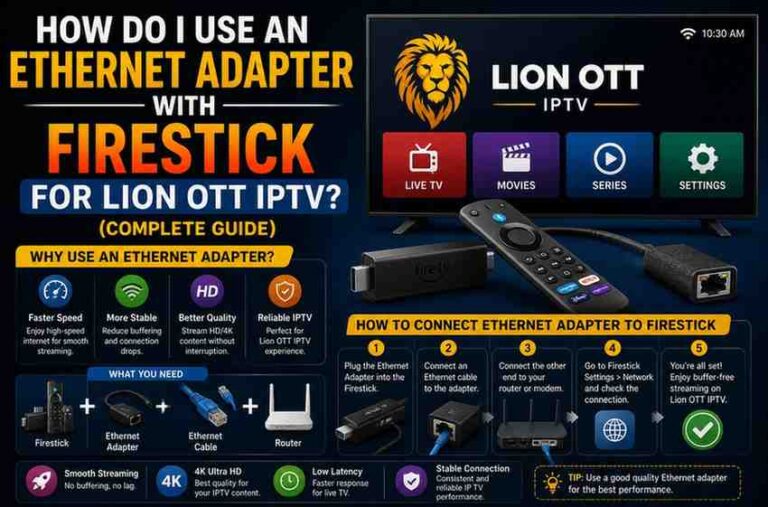
Use Ethernet Adapter If Possible
Ethernet connections provide:
- More stable streaming
- Lower buffering
- Better IPTV performance
Common Problems After Factory Reset
Sometimes users encounter issues even after resetting.
Firestick Stuck on Amazon Logo
Solutions:
- Unplug Firestick for 60 seconds
- Reconnect power
- Use original adapter
Remote Not Pairing
Fix:
- Hold Home button for 10 seconds
- Move closer to device
- Replace batteries if necessary
IPTV Still Buffering After Reset
Possible causes:
- Slow internet
- IPTV server overload
- Weak Wi-Fi signal
- ISP throttling
Should You Factory Reset Often?
Factory reset should only be used when necessary.
You do not need to reset regularly unless:
- Performance becomes extremely poor
- Apps repeatedly crash
- Storage issues persist
- Malware or corrupted files are suspected
For regular maintenance, clearing cache and restarting Firestick are usually enough.
Is Factory Reset Safe?
Yes, factory resetting is completely safe when performed correctly.
It is an official Firestick feature designed to:
- Restore system stability
- Remove corrupted files
- Improve performance
- Solve persistent software issues
Just ensure you:
- Save IPTV credentials
- Maintain stable power
- Reinstall apps from trusted sources
Frequently Asked Questions
Will Factory Reset Remove Lion OTT IPTV?
Yes. All installed apps are deleted during reset.
Can Factory Reset Fix Buffering Issues?
Yes. Resetting often removes corrupted files causing buffering and lag.
How Long Does Firestick Reset Take?
Usually between:
- 5 to 10 minutes
Will Reset Improve Streaming Speed?
In many cases, yes. Removing system clutter improves overall performance.
Final Thoughts
Factory resetting your Firestick is one of the most effective solutions for fixing serious Lion OTT IPTV issues such as buffering, crashes, freezing, and slow performance. Although the process removes all installed apps and settings, it gives your device a completely fresh start and often restores smooth IPTV streaming.
After resetting, reinstall the latest Lion OTT IPTV version, keep your Firestick updated, and regularly clear cache files to maintain optimal performance. By following the steps in this guide, you can significantly improve your Firestick experience and enjoy uninterrupted IPTV entertainment once again.