How to Install TiviMate on Firestick Step-by-Step IPTV Guide 2026
Streaming has completely changed the way people watch TV, and devices like the Amazon Fire TV Stick have made it incredibly easy to access content from anywhere in the world. If you’re looking for a powerful IPTV player, Install TiviMate Firestick Guide shows why TiviMate is one of the best options available right now.
In this Install TiviMate Firestick Guide, you’ll learn exactly how to install TiviMate on Firestick, step by step—even if you’ve never done it before. We’ll also cover setup tips and why pairing it with a reliable IPTV service like Lion OTT IPTV can completely transform your streaming experience.
This Install TiviMate Firestick Guide will also help you avoid common installation mistakes and ensure smooth performance from your IPTV setup.
What Is TiviMate?
TiviMate is a premium IPTV player designed specifically for Android-based devices like Firestick. Unlike typical streaming apps, it doesn’t provide content on its own. Instead, it acts as a powerful interface where you can load IPTV playlists.
Think of it as a smart TV guide—but much faster, cleaner, and more customizable.
With TiviMate, you get:
- A sleek, cable-like interface
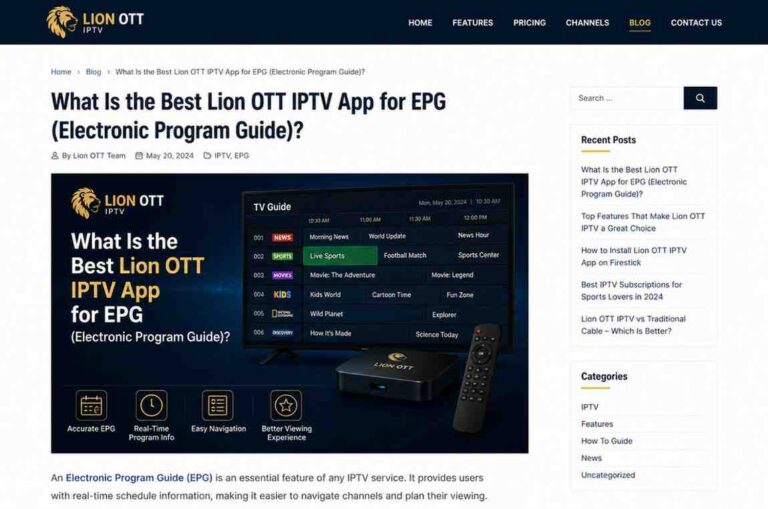
- Electronic Program Guide (EPG) support
- Multi-playlist support
- Catch-up TV (if your provider supports it)
- Recording options (premium version)
Why Install TiviMate on Firestick?
Firestick is one of the most popular streaming devices because it’s affordable and easy to use. However, it doesn’t come with advanced IPTV features built in.
That’s where TiviMate shines.
When you install TiviMate on your Firestick:
- Navigation becomes smoother
- Channel browsing feels like traditional TV
- You get better control over playlists
- Streaming becomes more organized
If you’re serious about IPTV, TiviMate is almost a must-have.
Before You Start: What You Need
Before installing TiviMate, make sure you have:
- A Firestick device connected to your TV
- Stable internet connection
- An IPTV subscription (we’ll discuss this shortly)
- Basic navigation knowledge of Firestick
Step-by-Step: How to Install TiviMate on Firestick
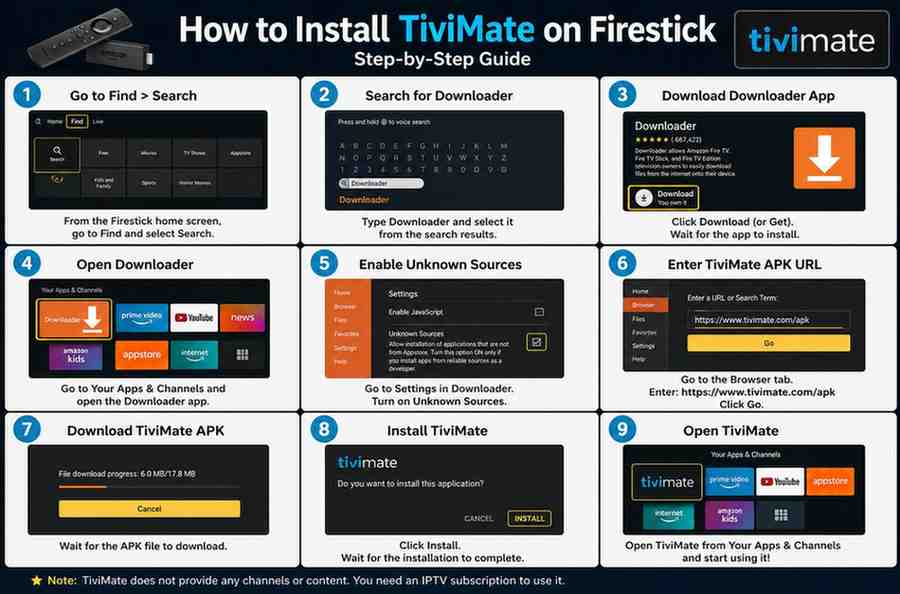
Since TiviMate isn’t available directly on the Amazon App Store, you’ll need to sideload it. Don’t worry—it’s easier than it sounds.
Step 1: Enable Unknown Sources
First, you need to allow third-party apps.
- Go to Settings on your Firestick
- Select My Fire TV
- Click Developer Options
- Turn ON:
- ADB Debugging
- Apps from Unknown Sources
If you don’t see Developer Options, go to About → Fire TV Stick and click it 7 times to enable it.
Step 2: Install Downloader App
To sideload apps, you’ll need a downloader tool.
- Go to the search icon on your Firestick home screen
- Type Downloader
- Install the app
- Open it once installed
Downloader is a simple tool that lets you download APK files directly.
Step 3: Download TiviMate APK
Now it’s time to get the TiviMate file.
- Open Downloader
- In the URL field, enter a trusted APK source
- Click Go
- Wait for the file to download
Make sure you only use safe and verified sources to avoid malware.
Step 4: Install TiviMate
Once the download finishes:
- Click Install
- Wait for installation to complete
- Click Open
That’s it—TiviMate is now installed on your Firestick.
Step 5: Set Up TiviMate
When you launch TiviMate for the first time:
- Click Add Playlist
- Choose your playlist type:
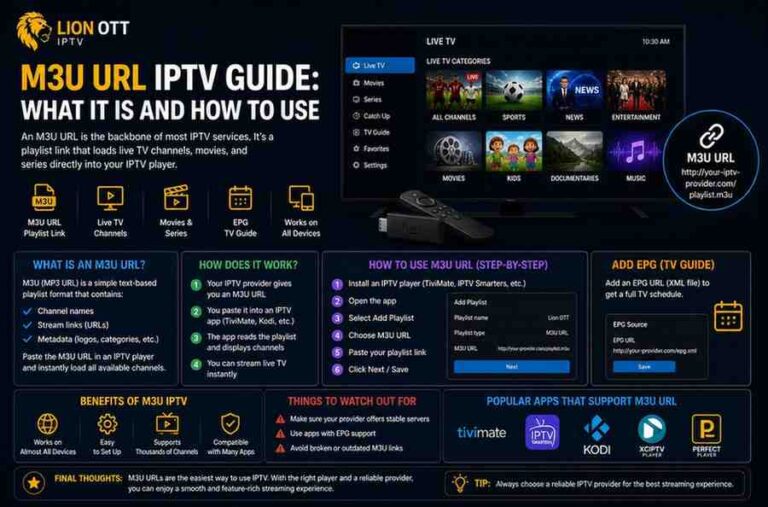
- M3U URL
- Xtream Codes
- Enter your IPTV credentials
After a few seconds, your channels will load.
Choosing the Right IPTV Service
TiviMate is just a player—it doesn’t provide channels. Your experience depends heavily on the IPTV provider you choose.
A high-quality IPTV service should offer:
- Stable streaming
- HD and 4K channels
- Minimal buffering
- Reliable EPG support
- Fast channel switching
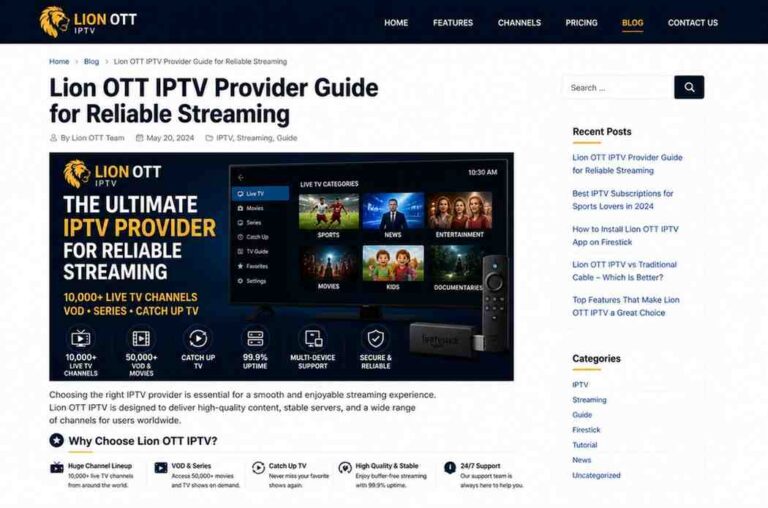
Many users prefer Lion OTT IPTV because it consistently delivers strong performance, a wide channel selection, and smooth playback. Pairing TiviMate with a dependable service like this ensures you actually get the premium experience the app is designed for.
Why Lion OTT IPTV Works Best with TiviMate
Let’s be honest—TiviMate is only as good as the IPTV service behind it.
Here’s why Lion OTT IPTV stands out:
1. Stability
Buffering is one of the biggest frustrations in IPTV. A stable provider reduces interruptions significantly.
2. Channel Variety
From sports to movies and international content, you get a wide selection.
3. EPG Compatibility
TiviMate’s interface shines when paired with accurate TV guides—and Lion OTT IPTV supports that well.
4. High Quality Streams
HD and even 4K streams run smoothly when backed by a reliable provider.
TiviMate Free vs Premium
TiviMate offers both free and premium versions.
Free Version:
- Basic playlist support
- Limited features
Premium Version:
- Multiple playlists
- Recording
- Catch-up support
- Customization options
If you plan to use IPTV regularly, upgrading to premium is worth it.
Tips for Best Performance
To get the most out of TiviMate on Firestick:
1. Use a Fast Internet Connection
At least 20 Mbps is recommended for HD streaming.
2. Keep Firestick Storage Clean
Too many apps can slow performance.
3. Update TiviMate Regularly
New updates improve stability and features.
4. Use a Reliable IPTV Provider
This is the biggest factor—your experience depends on it.
Common Issues and Fixes
App Not Installing
- Check if Unknown Sources is enabled
- Restart Firestick
Buffering Issues
- Check internet speed
- Switch IPTV server (if available)
EPG Not Loading
- Refresh EPG in settings
- Verify IPTV provider details
Is TiviMate Legal?
TiviMate itself is completely legal—it’s just a media player.
However, legality depends on the IPTV service you use. Always choose reputable providers and ensure compliance with your local regulations.
Final Thoughts
Installing TiviMate on Firestick is one of the best upgrades you can make to your streaming setup. While the process involves a few extra steps, it’s simple once you follow the guide.
The real magic happens when you combine TiviMate with a high-quality IPTV provider. A service like Lion OTT IPTV can elevate your experience with smoother streaming, better channel organization, and minimal interruptions.
If you’re tired of cluttered apps and unreliable streams, this setup is definitely worth trying.