How to Enable Apps from Unknown Sources on Firestick
The Amazon Fire TV Stick is one of the most popular streaming devices in the world—and for good reason. It’s affordable, easy to use and gives you access to thousands of apps through the official app store. However, many users don’t realize that the real power of Firestick goes beyond its default app library. Learning how to enable unknown sources on Firestick allows users to install third-party apps and expand their streaming options with greater flexibility.
If you’ve ever wanted to install apps that aren’t available in the official store, you’ve probably come across the term “Apps from Unknown Sources.” Enabling this setting opens the door to a much broader range of applications, including streaming tools, utilities, and customization options.
In this guide, you’ll learn exactly how to enable Apps from Unknown Sources on your Firestick, why it matters, and how to do it safely. Whether you’re a beginner or someone looking to get more out of your device, this walkthrough will make the process simple and stress-free.
What Does “Apps from Unknown Sources” Mean?
Before jumping into the steps, it’s important to understand what this feature actually does.
By default, your Firestick only allows you to install apps from Amazon’s official Appstore. This restriction is in place to protect users from potentially harmful or unverified software.
When you enable “Apps from Unknown Sources,” you’re essentially telling your Firestick that it’s okay to install apps from outside the official ecosystem. This process is often referred to as “sideloading.”
Sideloading gives you the freedom to install apps using APK files (Android installation files), which can be downloaded from the internet.
Why Would You Want to Enable It?
There are several reasons why people choose to enable this setting:
1. Access to More Apps
Many useful apps aren’t available in the Amazon Appstore. Enabling unknown sources allows you to install them manually.
2. Early Updates
Sometimes apps receive updates on their official websites before they appear in the app store.
3. Customization
You can install tools that enhance your Firestick experience, such as file managers, media players, or interface customizers.
4. Streaming Flexibility
Users often install third-party streaming apps that offer a wider range of content.
Is It Safe to Enable Unknown Sources?
This is one of the most common concerns—and rightly so.
Enabling this option itself is not dangerous. However, what you install afterward matters a lot. Since these apps are not vetted by Amazon, there’s always some level of risk involved.
Tips to Stay Safe:
- Only download APK files from trusted websites
- Avoid apps that seem suspicious or poorly reviewed
- Use a reliable antivirus or security tool if possible
- Keep your Firestick updated with the latest software
Being cautious goes a long way in keeping your device secure.
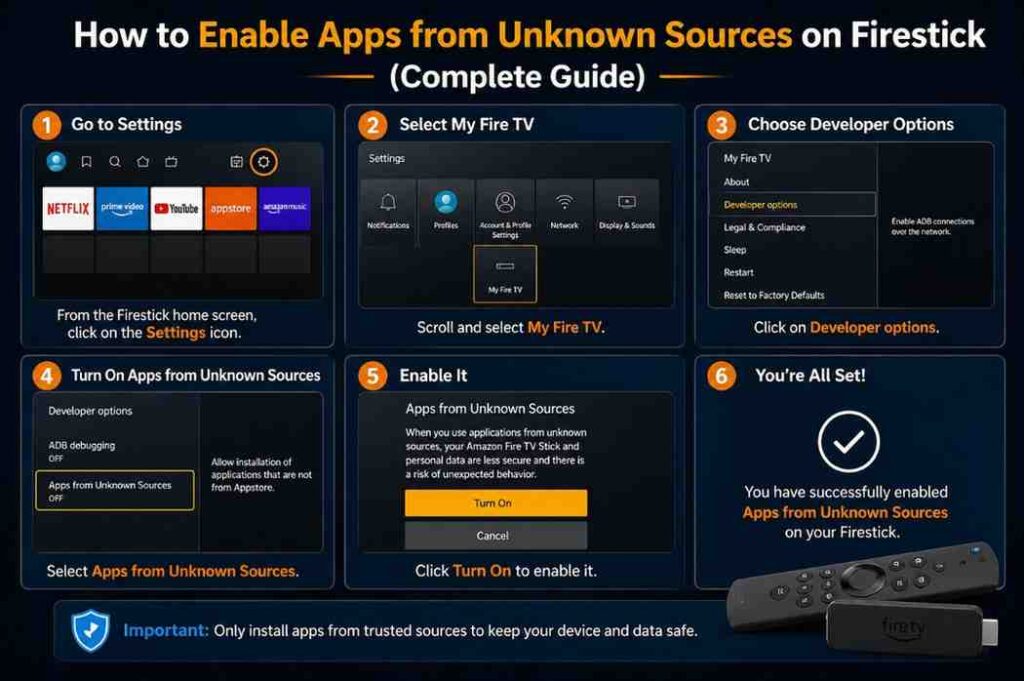
Step-by-Step: How to Enable Apps from Unknown Sources on Firestick
The process is straightforward, but it varies slightly depending on your Firestick version. Follow these steps carefully.
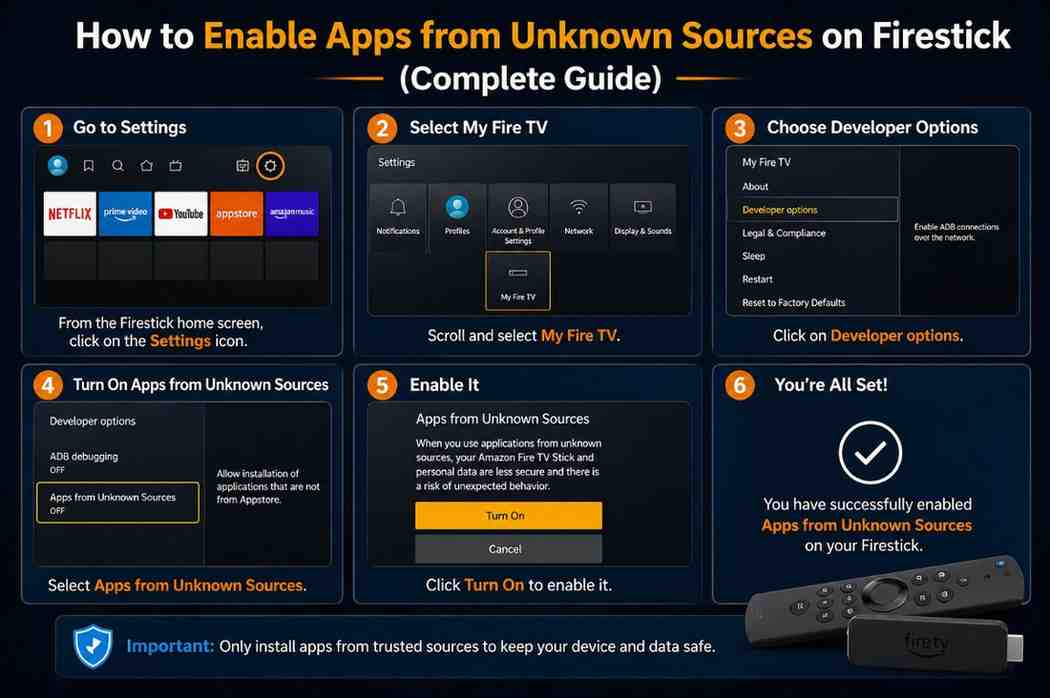
Step 1: Turn On Your Firestick
Start by powering on your Firestick and making sure it’s connected to the internet. Once you’re on the home screen, you’re ready to begin.
Step 2: Go to Settings
Navigate to the top menu and scroll to the right until you find Settings. Select it to open the system options.
Step 3: Open “My Fire TV”
Inside the Settings menu, look for My Fire TV and click on it.
If you don’t see it immediately, it may also appear as:
- Device
- System
The naming can differ slightly depending on your software version.
Step 4: Access Developer Options
Within “My Fire TV,” you’ll find Developer Options. Select it.
If you don’t see Developer Options, don’t worry—it may be hidden by default (we’ll cover how to enable it shortly).
Step 5: Enable “Apps from Unknown Sources”
Inside Developer Options, you’ll see:
- ADB Debugging
- Apps from Unknown Sources
Turn Apps from Unknown Sources to ON.
You may see a warning message explaining the risks. Confirm your choice to proceed.
What If Developer Options Are Missing?
Newer Firestick models sometimes hide Developer Options by default. Here’s how to bring it back:
Steps to Enable Developer Options:
- Go to Settings
- Select My Fire TV
- Click on About
- Highlight your Firestick device name
- Press the select button on your remote 7 times
After doing this, you’ll see a message saying, “You are now a developer.”
Now go back, and Developer Options should be visible.
Installing Apps After Enabling Unknown Sources
Once you’ve enabled the setting, the next step is installing third-party apps. You’ll typically need a downloader tool.
Common Installation Process:
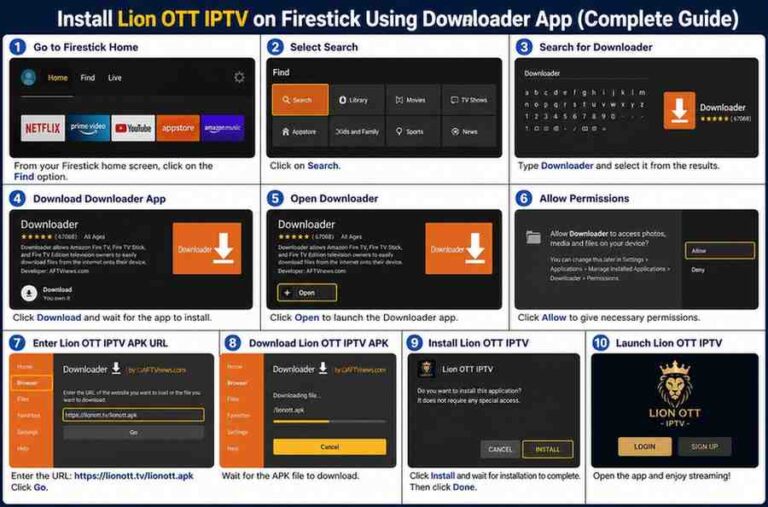
- Install a downloader app from the Amazon Appstore
- Open the downloader
- Enter the URL of the APK file
- Download and install the app
After installation, the app will appear in your apps library.
Best Practices for Sideloading Apps
Enabling unknown sources is just the first step. To ensure a smooth experience, keep these best practices in mind:
Keep Storage in Check
Firestick devices have limited storage. Regularly remove unused apps to avoid performance issues.
Update Apps Manually
Third-party apps won’t update automatically. You’ll need to download newer versions manually.
Use a VPN (Optional but Recommended)
Some users prefer using a VPN while streaming or downloading apps to enhance privacy.
Avoid Overloading the Device
Installing too many apps can slow down your Firestick. Stick to what you actually use.
Troubleshooting Common Issues
Even though the process is simple, you might run into some issues. Here’s how to fix them:
Problem: App Not Installing
- Make sure unknown sources is enabled
- Check if the APK file is compatible with Firestick
- Clear cache and try again
Problem: Developer Options Not Showing
- Repeat the “7-click” method under About
- Restart your Firestick
Problem: App Crashing
- The app may not be optimized for Firestick
- Try an older or updated version
Advantages of Enabling Unknown Sources
Let’s summarize the benefits:
- Greater app variety
- More control over your device
- Access to exclusive features
- Ability to customize your streaming experience
For many users, this feature transforms the Firestick from a basic streaming device into a powerful entertainment hub.
Disadvantages to Consider
While the benefits are significant, there are a few downsides:
- Potential security risks
- Manual updates required
- Some apps may not work properly
- Risk of downloading unsafe files
Understanding these trade-offs helps you make a more informed decision.
Should You Enable It?
If you’re someone who enjoys exploring new apps and customizing your device, enabling unknown sources is definitely worth it.
However, if you prefer a simple, worry-free experience, sticking with the official app store might be the better option.
Ultimately, it depends on how comfortable you are with managing apps manually.
Final Thoughts
Enabling “Apps from Unknown Sources” on Firestick is a simple process that unlocks a world of possibilities. From accessing hidden apps to customizing your streaming setup, this feature gives you far more control over your device.
That said, with great power comes responsibility. Always be mindful of what you install and where you download it from. A little caution can save you from potential issues down the road.
By following the steps outlined in this guide, you’ll be able to safely enable unknown sources and make the most out of your Firestick experience.