How do I use Kodi for Lion OTT IPTV on Firestick?
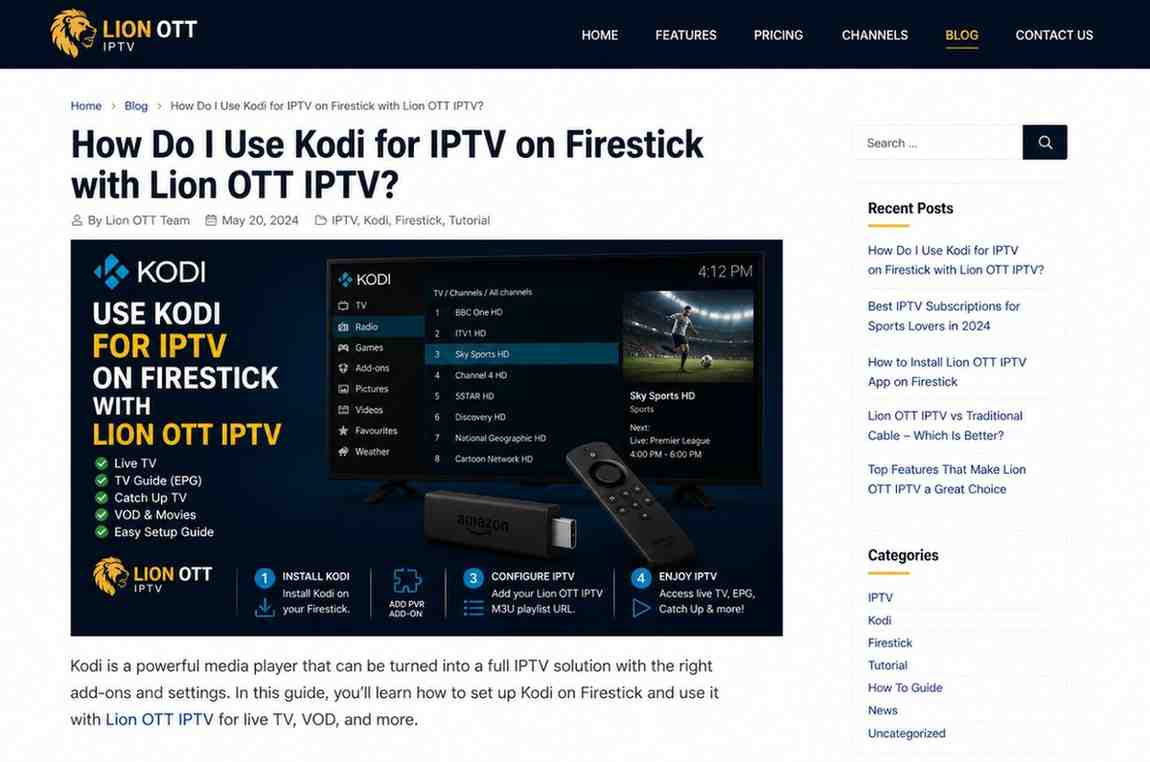
If you’re using a Firestick and want more flexibility than standard IPTV apps, Lion OTT IPTV Firestick Kodi is one of the most powerful setups you can use. It’s open-source, highly customizable, and capable of turning your streaming device into a full media hub.
When combined with Lion OTT IPTV, Kodi gives you control, customization, and a different kind of IPTV experience compared to apps like TiviMate or IPTV Smarters.
But here’s the truth—Kodi isn’t plug-and-play. It requires a bit of setup. The good news? Once it’s configured properly, it works extremely well.
Let’s walk through everything step by step in a way that actually makes sense.
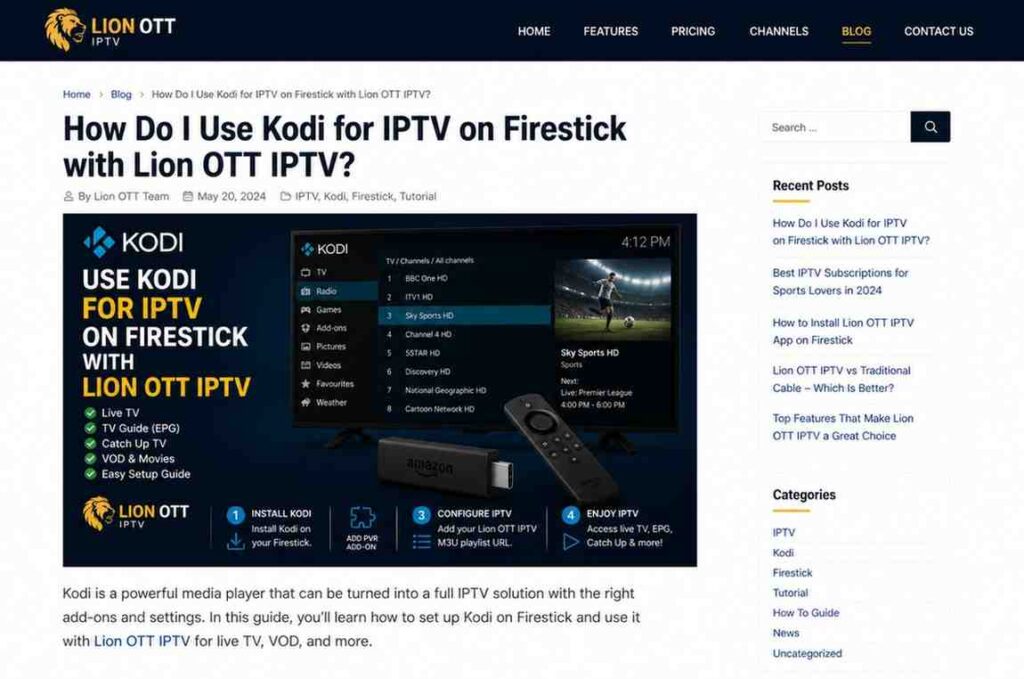
What Is Kodi and Why Use It for IPTV?
Kodi is a free media player that allows you to stream content from different sources using add-ons. Unlike traditional IPTV apps, Kodi doesn’t come pre-configured for IPTV—you need to set it up manually.
Why Use Kodi for IPTV?
- Full customization
- Supports multiple add-ons
- Works with M3U playlists
- Can combine IPTV with movies and shows
- No subscription required for the app itself
For Lion OTT IPTV Firestick Kodi users, this means more control over how you watch content.
Is Kodi Good for Firestick?
Yes—but with some conditions.
Kodi runs well on Firestick, especially newer models like Firestick 4K and 4K Max. However, since Firestick has limited resources, performance depends on how you configure Kodi.
Tips for Better Performance:
- Use lightweight skins
- Avoid too many add-ons
- Clear cache regularly
What You Need Before Setup
Before you begin, make sure you have:
- Firestick device
- Stable internet connection
- Lion OTT IPTV M3U URL
- Kodi installed on Firestick
Step 1: Install Kodi on Firestick
Kodi is not available in the Amazon App Store, so you’ll need to sideload it.
Steps:
- Go to Settings on Firestick
- Select My Fire TV
- Click Developer Options
- Enable Apps from Unknown Sources
- Install Downloader app
- Open Downloader
- Enter Kodi APK URL
- Download and install
Once installed, open Kodi.
Step 2: Set Up Kodi for IPTV
Kodi uses add-ons to stream IPTV content.
Best Add-On: PVR IPTV Simple Client
This is the easiest and most reliable option.
Step 3: Install PVR IPTV Simple Client
- Open Kodi
- Go to Add-ons
- Select My Add-ons
- Click PVR Clients
- Choose PVR IPTV Simple Client
- Click Install
Step 4: Add Lion OTT IPTV Playlist
Now you connect your IPTV service.
Steps:
- Open PVR IPTV Simple Client
- Click Configure
- Select General
- Choose M3U Playlist URL
- Enter your Lion OTT IPTV M3U link
- Click OK
Step 5: Add EPG (TV Guide)
To get channel schedules:
- Go to EPG Settings
- Enter EPG URL
- Save settings
Step 6: Enable the Add-On
- Go back to PVR IPTV Simple Client
- Click Enable
Kodi will now load channels and guide data.
Step 7: Access IPTV Channels
- Go to Kodi home screen
- Select TV
- Browse channels
You now have a working Lion OTT IPTV Firestick Kodi setup.
How to Improve Kodi IPTV Experience
Kodi is powerful—but it needs optimization.
Use Lightweight Skin
Default skin works best on Firestick.
Limit Add-Ons
Too many add-ons slow down performance.
Update Regularly
Keep Kodi and add-ons updated.
Common Issues and Fixes
Channels Not Loading
Fix:
- Check M3U URL
- Restart Kodi
EPG Not Showing
Fix:
- Refresh guide
- Verify EPG link
Buffering Issues
Fix:
- Check internet speed
- Adjust cache settings
Kodi Crashing
Fix:
- Clear cache
- Reinstall Kodi
Kodi vs IPTV Apps: Which Is Better?
Let’s be honest—Kodi isn’t for everyone.
Kodi:
- More control
- More setup required
- Less user-friendly
IPTV Apps (TiviMate, Smarters):
- Easier setup
- Better UI
- Faster performance
For Lion OTT IPTV Firestick Kodi, Kodi is ideal if you want customization. But if you prefer simplicity, dedicated IPTV apps may be better.
Is Kodi Legal?
Kodi itself is completely legal. It’s just a media player.
However:
- Content depends on your IPTV provider
- Always follow local laws
Firestick Optimization Tips for Kodi
To get the best performance:
- Restart Firestick regularly
- Close background apps
- Use Ethernet connection if possible
- Avoid heavy skins
Final Thoughts
Using Kodi for IPTV on Firestick with Lion OTT IPTV gives you a flexible and customizable streaming setup. While it takes more effort to set up compared to other apps, the level of control you get makes it worth it for many users.
If you enjoy tweaking settings and building your own media experience, Kodi is a great choice. But if you just want something simple, you might prefer apps like TiviMate or IPTV Smarters.
At the end of the day, the best setup is the one that works smoothly for you. And once Kodi is configured properly, it can turn your Firestick into a powerful entertainment hub.