How to Add Lion OTT IPTV Subscription to Firestick
Streaming has completely changed how people watch TV, and IPTV services like Lion OTT are becoming more popular every day. If you want to add Lion OTT IPTV subscription to Firestick, the setup process is simple and quick. Once subscribed to Lion OTT, getting everything up and running on your Firestick takes only a few steps.
The good news is that it’s not complicated at all. To add Lion OTT IPTV subscription to Firestick, you only need a few simple steps, and even beginners can complete the setup in less than 15 minutes.
This guide will show you how to add Lion OTT IPTV subscription to Firestick step by step in a clear, beginner-friendly way—without confusing jargon or skipped steps.
What Is Lion OTT IPTV?
Before jumping into setup, let’s quickly understand what you’re working with.
Lion OTT is an IPTV subscription service. Instead of using cable or satellite, it delivers live TV channels, movies, and series over the internet. That means you can watch thousands of channels directly on your Firestick.
However, there’s one important thing to understand:
Lion OTT is a service, not a standalone app (in most cases).
You need an IPTV player app to use it.
Think of it like this:
- Lion OTT = Content provider
- IPTV app = Media player
What You Need Before Setup
To avoid frustration, make sure you have these ready:
- A working Amazon Firestick
- Stable internet connection (at least 10–15 Mbps recommended)
- Active Lion OTT subscription
- Login details from your provider, such as:
- Xtream Codes (URL, username, password)
- OR M3U playlist link
If you don’t have these, contact your provider first. Without them, nothing will work.
Step 1: Prepare Your Firestick
Firestick blocks third-party apps by default, so you need to enable installation from unknown sources.
Here’s how:
- Go to Settings
- Select My Fire TV
- Click Developer Options
- Turn ON:
- Apps from Unknown Sources
- ADB Debugging (optional but helpful)
If you don’t see Developer Options:
- Go to About
- Click your Firestick name 7 times
Now your device is ready.
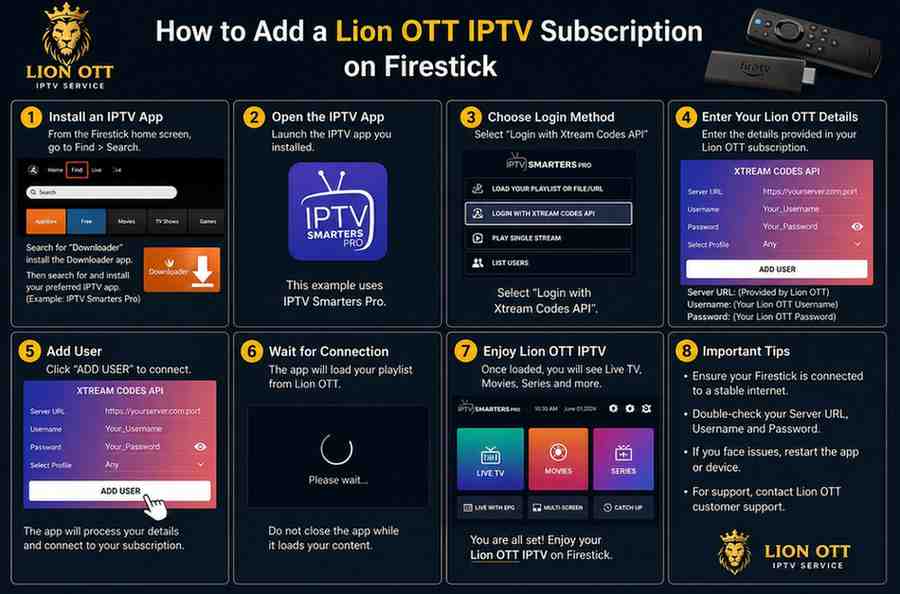
Step 2: Install Downloader App
The Downloader app is essential because it allows you to install apps not available in the Amazon App Store.
Install it like this:
- Go to Find → Search
- Type Downloader
- Install it
- Open the app
When you launch it for the first time, allow permissions.
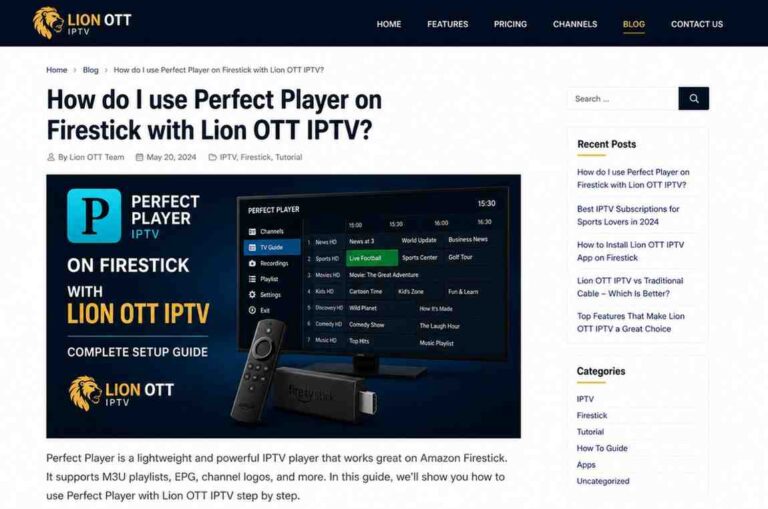
Step 3: Install an IPTV Player App
Now you need an app where you’ll enter your Lion OTT subscription.
There are several options, but here are the most reliable:
Popular IPTV Apps for Firestick
- IPTV Smarters
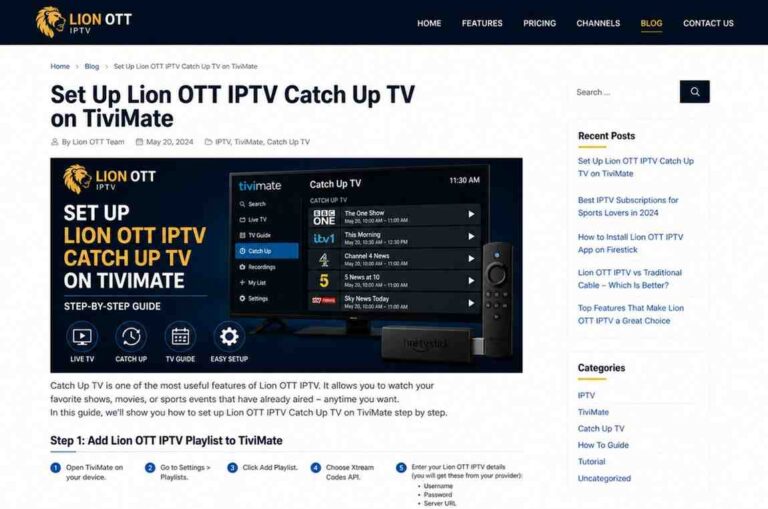
- TiviMate
- Hot Player
- Bob Player
- IBO Player
Some are available in the Amazon Store, while others require Downloader.
Method 1: Install IPTV Smarters (Beginner Friendly)
This is the easiest option for most users.
Steps:
- Open Downloader
- Enter a download URL or code (provided by your IPTV provider or official site)
- Download APK
- Install the app
- Open IPTV Smarters
Step 4: Add Lion OTT Subscription
Now comes the most important part—connecting your subscription.
You’ll usually get one of three login methods.
Method A: Xtream Codes Login (Recommended)
This is the easiest and fastest method.
Steps:
- Open your IPTV app
- Select Login with Xtream Codes API
- Enter:
- Username
- Password
- Server URL
- Click Login
That’s it.
Your channels, movies, and series will load automatically.
Method B: M3U Playlist URL
If your provider gave you an M3U link:
Steps:
- Open IPTV app
- Select Load Playlist / M3U URL
- Paste your link
- Click Add User
It may take a few seconds to load everything.
Method C: MAC Address Activation (For Certain Apps)
Some apps like Bob Player or IBO Player work differently.
Steps:
- Open the app
- Note your MAC address shown on screen
- Send it to your IPTV provider
- Wait for activation
- Restart the app
Once activated, your channels will appear automatically.
Step 5: Start Watching
Once everything is set up:
- Open the app
- Browse Live TV, Movies, Series
- Select a channel and enjoy
You now have full access to your Lion OTT subscription.
Best Settings for Smooth Streaming
To avoid buffering and lag, tweak a few settings.
Inside your IPTV app:
- Enable Hardware Decoder
- Increase Buffer Size
- Use External Player (like VLC) if available
Internet tips:
- Use 5GHz WiFi or Ethernet adapter
- Avoid heavy downloads while streaming
Common Problems and Fixes
Even with correct setup, issues can happen. Here’s how to fix them.
Problem: No Channels Showing
Cause: Wrong login details
Fix: Double-check credentials (especially URL)
Problem: Buffering or Freezing
Cause: Slow internet or server congestion
Fix:
- Restart router
- Lower stream quality
- Try VPN (if ISP throttling is suspected)
Problem: App Crashing
Fix:
- Clear app cache
- Restart Firestick
- Reinstall app
Problem: Playlist Not Loading
Fix:
- Check internet connection
- Re-enter M3U link
- Contact provider
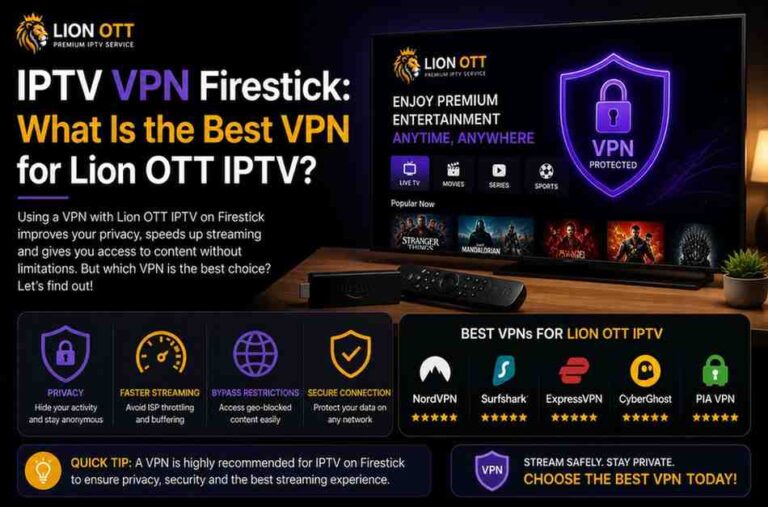
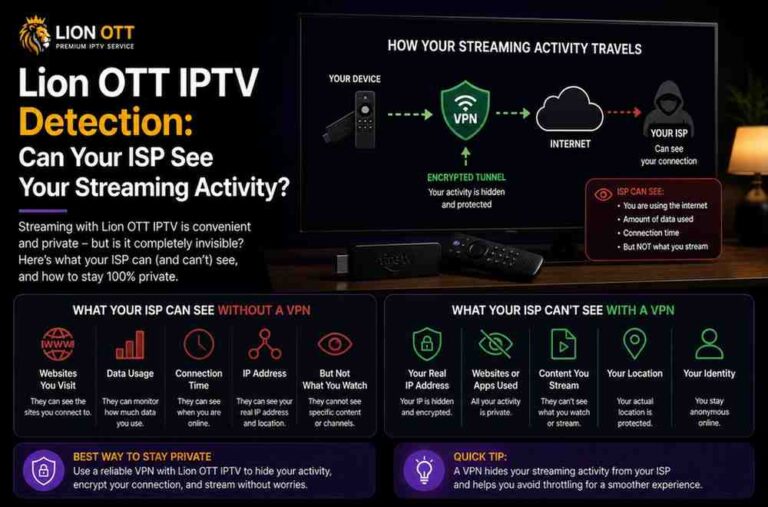
Do You Need a VPN?
This is optional but recommended.
A VPN can:
- Improve privacy
- Prevent ISP throttling
- Unlock geo-restricted content
However, it may slightly reduce speed if not configured properly.
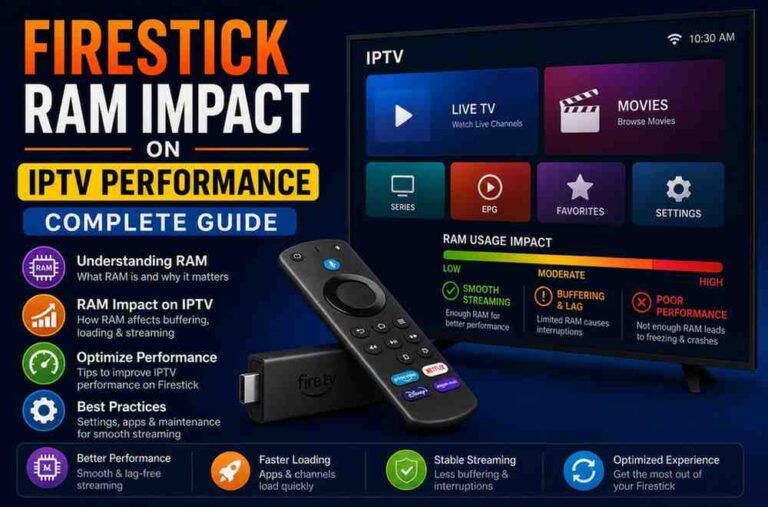
Tips for Better Experience
Here are some small tips that make a big difference:
- Restart your Firestick once a week
- Keep apps updated
- Don’t overload with too many apps
- Use lightweight IPTV players
Is Lion OTT Legal?
This depends on your region and how the service operates.
IPTV itself is legal, but:
- Some providers may stream copyrighted content without licensing
Always use services responsibly and follow local regulations.
Final Thoughts
Setting up Lion OTT IPTV on Firestick might seem tricky at first, but once you understand the process, it becomes very simple.
Let’s recap:
- Install Downloader
- Install IPTV player
- Enter your subscription details
- Start streaming
That’s all there is to it.
The key is having the correct login credentials and using a reliable IPTV app. Once those are in place, everything works smoothly.
Quick FAQ
Can I use Lion OTT without an app?
No, you need an IPTV player.
Which app is best?
IPTV Smarters is best for beginners, while TiviMate offers more advanced features.
How long does setup take?
Usually 10–15 minutes.
Why is my stream buffering?
Most likely due to internet speed or server issues.