How to Install GSE Smart IPTV on Firestick
Streaming has changed the way people watch TV, and IPTV apps have become one of the most popular choices for accessing live channels, movies, and on-demand content. If you want to install GSE Smart IPTV on Firestick, it’s important to know why this app is a top choice. Among the many IPTV players available today, GSE Smart IPTV stands out as one of the most flexible and user-friendly apps for Firestick users.
If you want to watch IPTV content on your Amazon Firestick, installing GSE Smart IPTV is a smart choice because it supports M3U playlists, Xtream Codes API, EPG guides, and multiple streaming formats.
In this complete guide, you’ll learn how to install GSE Smart IPTV on Firestick, set it up, and start streaming in minutes.
Many IPTV users also prefer Lion OTT IPTV because of its stable streaming, premium channels, and smooth playback experience, making it one of the best IPTV services for Firestick users.
What is GSE Smart IPTV?
GSE Smart IPTV is a powerful IPTV player designed for users who want to organize and stream IPTV playlists easily.
Unlike IPTV providers, GSE Smart IPTV does not offer channels. Instead, it works as a media player where you can upload your IPTV subscription playlist.
Key features include:
- M3U playlist support
- Xtream Codes integration
- EPG support
- Live TV playback
- VOD support
- Chromecast compatibility
- External player integration
- User-friendly interface
It’s widely used because of its flexibility and compatibility across multiple devices.
Why Install GSE Smart IPTV on Firestick?
Firestick is one of the most popular streaming devices because it’s affordable, portable, and easy to use.
Installing GSE Smart IPTV on Firestick gives you several benefits:
Easy IPTV Access
You can stream live TV, sports, movies, and entertainment directly.
Better Performance
Firestick hardware works smoothly with IPTV apps.
Portable Streaming
Take your Firestick anywhere and access your playlists.
Large Screen Experience
Enjoy IPTV on your TV instead of mobile devices.
Supports Premium IPTV Providers
Apps like GSE Smart IPTV work well with providers like Lion OTT IPTV for a better streaming experience.
Requirements Before Installation
Before you start, make sure you have:
- Amazon Firestick
- Stable internet connection
- Amazon account
- Downloader app installed
- IPTV subscription details
- Enough storage space
These basics will help make installation easier.
Is GSE Smart IPTV Available on Amazon App Store?
No, GSE Smart IPTV may not always be directly available in the Amazon App Store depending on your region.
That means you may need to sideload the APK file using Downloader.
Don’t worry—it’s simple.
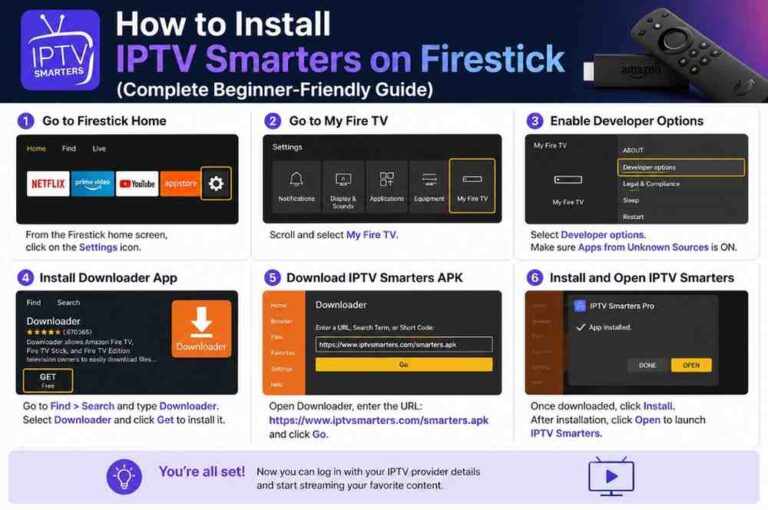
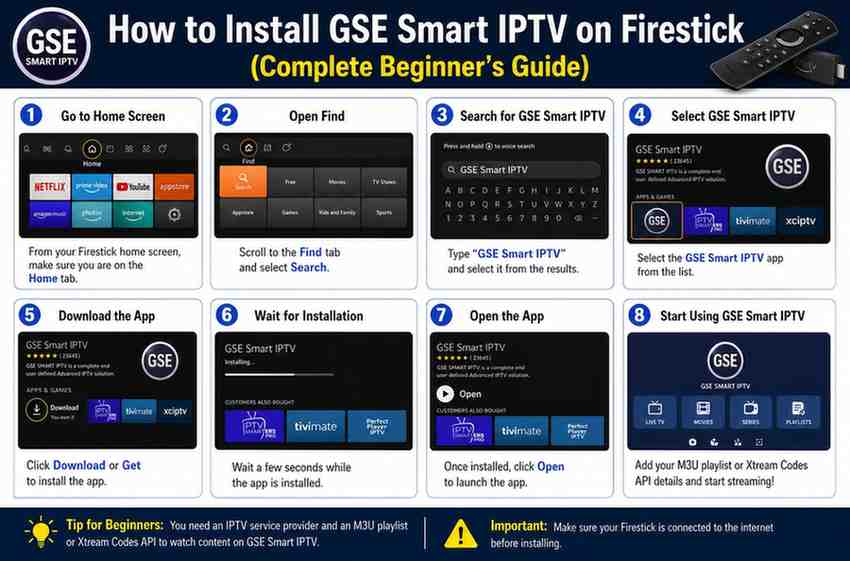
Step 1: Install Downloader App on Firestick
Downloader helps you install apps from external sources.
Follow these steps:
- Turn on Firestick
- Open the home screen
- Select Find
- Click Search
- Type Downloader
- Select Downloader
- Click Download
- Wait for installation
Once installed, move to the next step.
Step 2: Enable Apps from Unknown Sources
To install third-party apps like GSE Smart IPTV, Firestick needs permission.
Follow this:
- Go to Firestick Settings
- Select My Fire TV
- Open Developer Options
- Click Install Unknown Apps
- Select Downloader
- Turn it ON
Now Firestick is ready for sideloading.
Step 3: Download GSE Smart IPTV APK
Now install the app.
Follow these steps:
- Open Downloader
- Allow storage permissions
- In the URL field, enter the APK link
- Click Go
- Wait for the APK to download
After downloading:
- Click Install
- Wait for installation
- Select Done
- Delete APK file to save space
Now the app is installed.
Step 4: Launch GSE Smart IPTV
To open the app:
- Press Home button
- Go to Apps
- Find GSE Smart IPTV
- Open it
The app will launch.
Now you’re ready for setup.
How to Set Up GSE Smart IPTV on Firestick
After installation, you need to add your IPTV playlist.
There are multiple ways.
Method 1: Add M3U Playlist
This is the most common setup.
Steps:
- Open GSE Smart IPTV
- Click Remote Playlist
- Select Add M3U URL
- Enter playlist name
- Paste M3U link
- Save
Your channels will load automatically.
Method 2: Add Xtream Codes API
This method is easier and more organized.
You need:
- Username
- Password
- Server URL
Steps:
- Open app
- Select Xtream Codes API
- Enter login details
- Save
Channels, movies, and series will appear.
Many users choose this method when using Lion OTT IPTV because setup is simple and organized.
Method 3: Add Local Playlist
If you have an M3U file:
- Download the playlist
- Upload to Firestick storage
- Open GSE Smart IPTV
- Add local playlist
- Select file
Done.
How to Add EPG Guide
EPG improves your viewing experience.
It shows:
- Program schedules
- Channel info
- Upcoming shows
Setup:
- Open GSE Smart IPTV
- Select EPG
- Add EPG URL
- Save
Now TV guide will work.
Best Settings for Better Streaming
To improve performance:
Use Hardware Decoder
Helps smoother playback.
Enable Buffer Optimization
Reduces buffering.
Use External Player
Players like VLC can improve quality.
Update Playlist Regularly
Keeps channels fresh.
Use Fast Internet
At least 20 Mbps recommended.
Why Many Users Prefer Lion OTT IPTV with GSE Smart IPTV
Choosing the right IPTV provider matters.
While GSE Smart IPTV is only a player, pairing it with a quality IPTV service improves your experience.
Many users consider Lion OTT IPTV among the best because it offers:
Stable Servers
Less buffering.
Premium Channels
Sports, movies, and entertainment.
HD and 4K Quality
Better viewing experience.
Fast Activation
Quick setup.
Global Content
International channels.
When combined with GSE Smart IPTV, the streaming experience becomes smoother and more reliable.
Common Installation Problems and Fixes
Sometimes issues happen.
Here’s how to fix them.
Downloader Not Working
Fix:
- Check internet
- Restart Firestick
- Update Downloader
APK Not Installing
Fix:
- Enable unknown sources
- Clear Firestick storage
- Restart device
Playlist Not Loading
Fix:
- Check URL
- Verify subscription
- Refresh playlist
Buffering Issues
Fix:
- Restart router
- Reduce video quality
- Use Ethernet adapter
App Crashing
Fix:
- Clear app cache
- Reinstall app
- Update Firestick software
Is GSE Smart IPTV Safe?
Yes, GSE Smart IPTV itself is safe as an IPTV player.
However:
- Download APK from trusted sources
- Avoid suspicious links
- Use secure IPTV providers
This reduces risks.
Is GSE Smart IPTV Free?
GSE Smart IPTV offers free features, but some advanced functions may require premium access depending on the version.
Basic IPTV streaming usually works fine for most users.
Can You Use GSE Smart IPTV Without Subscription?
No.
The app is only a player.
You need:
- IPTV playlist
or - IPTV subscription
Without content, the app won’t work.
That’s why many users pair it with services like Lion OTT IPTV.
GSE Smart IPTV vs TiviMate
Many users compare these apps.
GSE Smart IPTV
Pros:
- Easy setup
- Multiple playlist support
- Flexible options
Cons:
- Interface can feel outdated
TiviMate
Pros:
- Modern design
- Better TV experience
Cons:
- Premium features locked
Both are strong choices.
Tips for Best IPTV Experience on Firestick
To get the best results:
Keep Firestick Updated
Updates improve performance.
Restart Weekly
Helps clear memory.
Clear Cache
Keeps apps fast.
Use VPN if Needed
Improves privacy.
Use Quality IPTV Provider
A reliable provider like Lion OTT IPTV can improve stability and content quality.
How to Update GSE Smart IPTV on Firestick
Updating keeps the app working properly.
Steps:
- Download latest APK
- Open Downloader
- Install updated version
- Replace old app
Your playlists usually remain saved.
How to Remove GSE Smart IPTV from Firestick
If you want to uninstall:
- Open Settings
- Applications
- Manage Installed Applications
- Select GSE Smart IPTV
- Click Uninstall
Done.
Frequently Asked Questions
Can I install GSE Smart IPTV directly from Amazon Store?
Usually no, sideloading is required.
Is GSE Smart IPTV legal?
The app itself is legal.
Content legality depends on your provider.
Does GSE Smart IPTV support live TV?
Yes.
It supports live TV streaming.
Can I use multiple playlists?
Yes.
It supports multiple playlists.
Does it support EPG?
Yes.
EPG setup is supported.
Is Lion OTT IPTV good for Firestick?
Many users prefer it because of stable channels, HD streaming, and easy compatibility with GSE Smart IPTV.
Final Thoughts
Installing GSE Smart IPTV on Firestick is simple once you know the process. With the Downloader app and a few setup steps, you can quickly transform your Firestick into a complete IPTV streaming device.
The app offers excellent playlist management, Xtream Codes support, EPG integration, and strong playback performance, making it a great choice for IPTV users.
To get the best streaming experience, pairing GSE Smart IPTV with a quality IPTV provider is important. Many users consider Lion OTT IPTV one of the best options because of its stable service, premium content, and smooth compatibility.
If you want an easy and flexible IPTV setup on Firestick, GSE Smart IPTV is definitely worth trying.