How to Install Lion OTT IPTV on Firestick Using Downloader App
Streaming has completely changed how people watch TV, and devices like the Amazon Firestick have made it easier than ever to access content from around the world. One popular method is learning how to Install Lion OTT IPTV on Firestick, which allows users to enjoy IPTV services provide live TV, movies, and series over the internet.
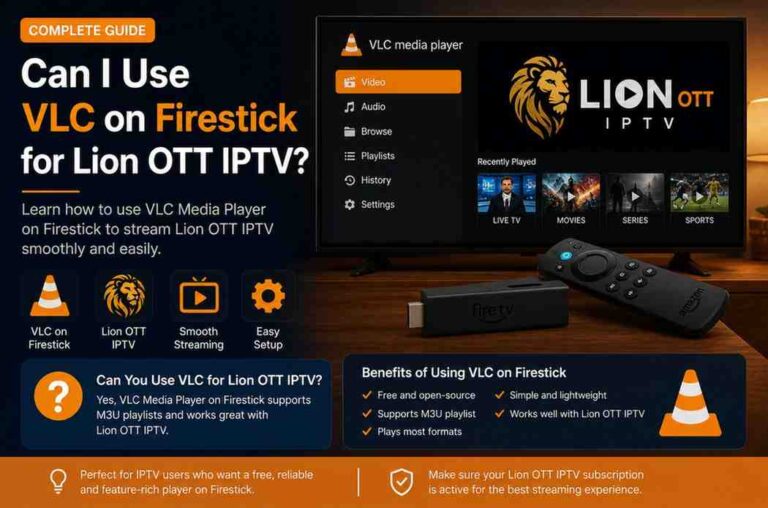
Since Lion OTT IPTV is not available on the Amazon App Store, you need to Install Lion OTT IPTV on Firestick manually using a sideloading method. The easiest and most widely used way to complete this Install Lion OTT IPTV on Firestick process is through the Downloader app.
This guide walks you through the entire process in a clear, practical way—even if you’ve never done this before.
What You Need Before You Start
Before jumping into installation, make sure you have a few basics ready:
- A working Amazon Firestick
- Stable internet connection
- Subscription details for Lion OTT IPTV
- Downloader app installed (or ready to install)
It’s also helpful to keep your IPTV login credentials nearby since you’ll need them after installation.
Step 1: Enable Apps from Unknown Sources
By default, Firestick blocks third-party apps for security reasons. To install Lion OTT IPTV, you need to allow installations from unknown sources.
Here’s how to do it:
- Go to the Firestick home screen
- Navigate to Settings
- Select My Fire TV
- Click on Developer Options
- Turn ON:
- ADB Debugging
- Install Unknown Apps
- Select Downloader and enable permission
If you don’t see “Developer Options,” go to About, select your device name, and click it multiple times until it says developer mode is enabled.
Step 2: Install Downloader App
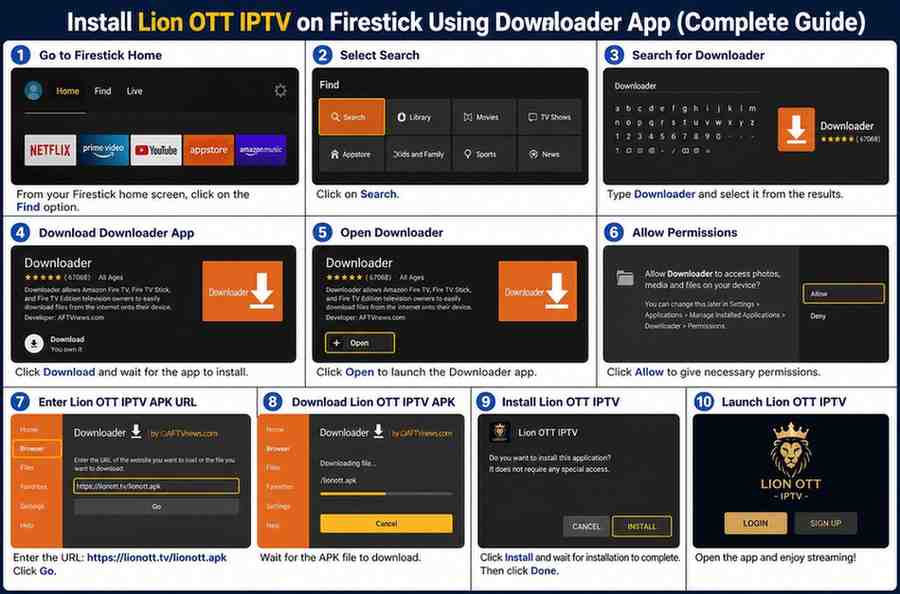
If you haven’t installed Downloader yet, follow these steps:
- From the home screen, go to Find
- Click Search
- Type Downloader
- Select the app from the results
- Click Download or Get
Once installed, open the app.
Step 3: Allow Permissions in Downloader
When you open Downloader for the first time:
- It will ask for permission to access files
- Click Allow
- Dismiss any pop-ups or quick guides
You’ll now see a URL input box—this is where the installation begins.
Step 4: Enter the Lion OTT IPTV APK URL
Since Lion OTT IPTV is not publicly listed, you’ll need the APK link provided by your IPTV service provider.
Steps:
- Open Downloader
- In the URL field, type the APK link exactly as provided
- Click Go
The app will begin downloading the APK file. This may take a few seconds to a minute depending on your internet speed.
Step 5: Install the APK File
Once the download completes:
- A prompt will appear
- Click Install
- Wait for installation to finish
- Click Done or Open
If you click Done, you’ll return to Downloader.
Step 6: Delete the APK File (Recommended)
To save storage space on your Firestick:
- After installation, Downloader will ask if you want to delete the file
- Click Delete
- Confirm again
This step is optional but highly recommended.
Step 7: Open Lion OTT IPTV
Now that installation is complete:
- Go back to the Firestick home screen
- Navigate to Your Apps & Channels
- Find Lion OTT IPTV
- Open the app
You may want to move it to the home screen for easy access.
Step 8: Log In to Your IPTV Account
When you open the app for the first time:
- Enter your login credentials (username/password or M3U URL)
- These details are provided by your IPTV provider
After logging in, the app will load channels and content.
Tips for Better Performance
To get the best experience while using Lion OTT IPTV, keep these tips in mind:
1. Use a Strong Internet Connection
Streaming IPTV requires stable internet. For HD content, at least 10 Mbps is recommended.
2. Restart Firestick Occasionally
Restarting clears cache and improves performance.
3. Close Background Apps
Too many apps running can slow down your device.
4. Use Ethernet Adapter (Optional)
If Wi-Fi is unstable, consider a wired connection.
Troubleshooting Common Issues
Even with the right steps, you might run into some problems. Here’s how to fix the most common ones.
App Not Installing
- Make sure “Install Unknown Apps” is enabled
- Check if the APK link is correct
- Restart Firestick and try again
Download Fails
- Verify your internet connection
- Re-enter the URL carefully
- Try again after a few minutes
App Crashes
- Clear cache from Firestick settings
- Reinstall the app
- Make sure you’re using the latest APK version
Buffering Issues
- Check internet speed
- Restart router
- Try streaming at lower quality
Is It Legal to Use IPTV?
This depends on the service provider and the content they offer. Some IPTV services operate legally, while others may stream copyrighted content without proper licensing.
It’s important to:
- Choose a reliable provider
- Understand your local regulations
- Use services responsibly
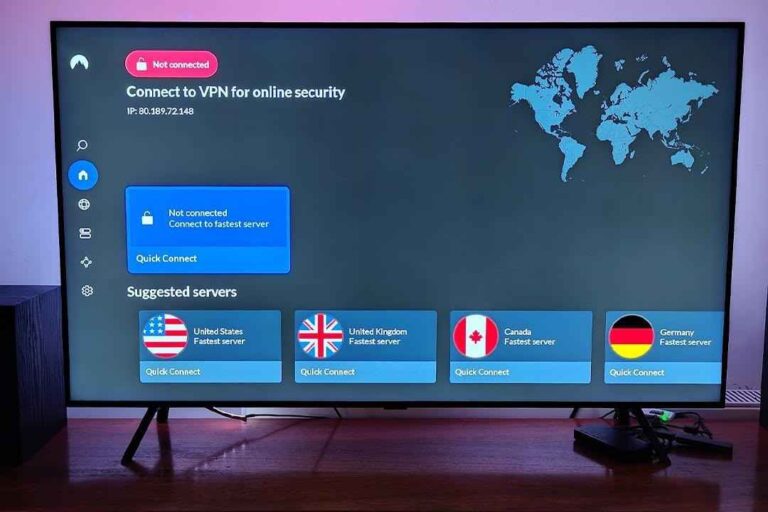
Should You Use a VPN?
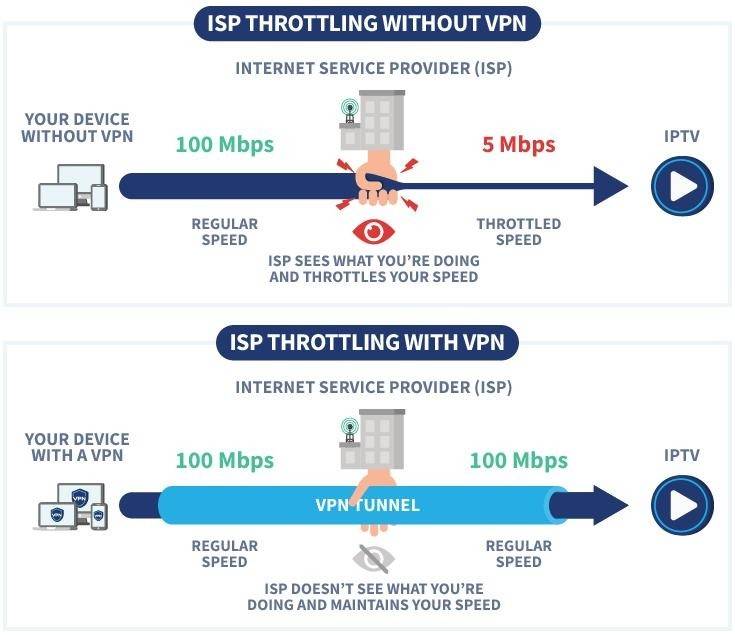
Many users prefer using a VPN while streaming IPTV. While it’s not mandatory, it can help with:
- Privacy protection
- Avoiding ISP throttling
- Accessing geo-restricted content
Make sure to choose a fast and reliable VPN to avoid buffering.
Advantages of Using Lion OTT IPTV
Users often choose IPTV services like Lion OTT for several reasons:
- Access to live TV channels worldwide
- On-demand movies and series
- Affordable compared to cable TV
- Works on multiple devices
However, quality depends heavily on your provider.
Final Thoughts
Installing Lion OTT IPTV on Firestick using the Downloader app is a simple process once you know the steps. The key is enabling unknown sources, using the correct APK link, and following the installation prompts carefully.
While the setup only takes a few minutes, the experience afterward depends on your internet connection and IPTV provider quality.
If you’re new to sideloading apps, this method is one of the easiest and safest ways to get started. Just make sure to stay cautious with the sources you use and keep your device optimized for the best performance.