
Clear Cache on Lion OTT IPTV Apps Easily on Firestick
Streaming devices like Amazon Firestick have transformed the way people watch television. With apps like Lion OTT IPTV, users can access thousands of channels, movies, and live content at their fingertips. However, like any app running on limited hardware, Lion OTT IPTV Cache buildup can lead to performance issues over time. One of the most common causes? Cache buildup.
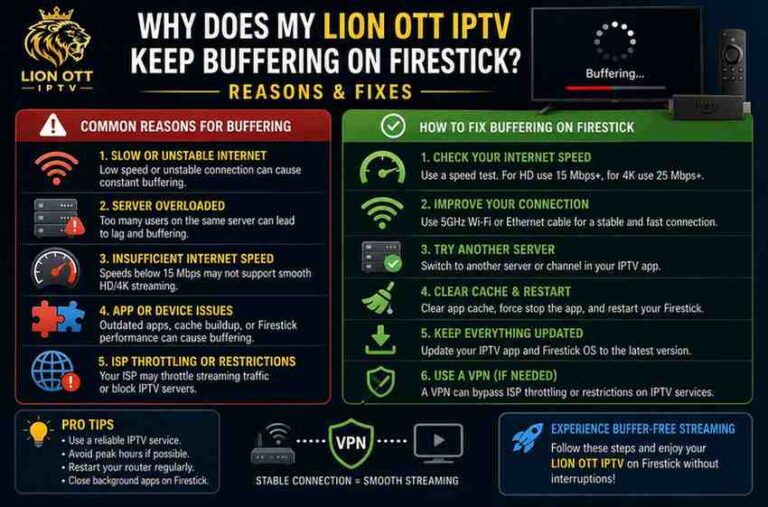
If you’ve noticed buffering, freezing, or slow navigation while using Lion OTT IPTV on your Firestick, clearing the Lion OTT IPTV Cache can often fix the problem instantly. This guide will walk you through everything you need to know—from what cache actually is to step-by-step instructions, troubleshooting tips, and best practices to keep your streaming smooth.

What Is Cache and Why Does It Matter?
Cache is temporary data stored by apps to help them load faster. When you open Lion OTT IPTV, it saves bits of information like thumbnails, login sessions, and previously loaded content so that next time, everything opens quicker.
While this sounds helpful (and it is), cache can become a problem when:
- It grows too large
- It becomes corrupted
- It contains outdated data
On a device like Firestick, which has limited storage and RAM, excessive cache can slow things down significantly.
Signs You Need to Clear Cache on Lion OTT IPTV
Not sure whether cache is the issue? Here are common symptoms:
- Videos buffering more than usual
- App crashing or freezing
- Slow navigation between menus
- Channels not loading properly
- Black screen or playback errors
If you’re experiencing any of these, clearing the cache is a quick and safe first step.
Step-by-Step: How to Clear Cache on Lion OTT IPTV (Firestick)
Follow these simple steps to clear cache:
Step 1: Go to Firestick Settings
From your Firestick home screen:
- Navigate to the top menu
- Select Settings
Step 2: Open Applications
- Scroll right and click on Applications
Step 3: Manage Installed Applications
- Select Manage Installed Applications
- You’ll see a list of all installed apps
Step 4: Find Lion OTT IPTV
- Scroll down until you find Lion OTT IPTV
- Click on it
Step 5: Clear Cache
- Select Clear Cache
- Wait a few seconds for the process to complete
That’s it. You’ve successfully cleared the cache.
Important: Don’t Click “Clear Data” (Unless Necessary)
While clearing cache is safe, you’ll also see an option called Clear Data. Be careful with this.
- Clear Cache: Removes temporary files (safe)
- Clear Data: Deletes login info, settings, and app data
Only use “Clear Data” if the app is completely broken and other fixes don’t work.
How Often Should You Clear Cache?
There’s no fixed rule, but here’s a good guideline:
- Light users: Once every 2–3 weeks
- Heavy users: Once a week
- If problems occur: Immediately
Regular maintenance helps keep your Firestick running smoothly.
Benefits of Clearing Cache
Clearing cache might seem like a small action, but it has noticeable benefits:
1. Improved Speed
The app runs faster because it’s not overloaded with unnecessary data.
2. Reduced Buffering
Streaming becomes smoother, especially for live IPTV channels.
3. Fewer Crashes
Corrupted cache files often cause apps to crash—removing them fixes stability issues.
4. More Storage Space
Firestick devices have limited storage, so freeing up space helps overall performance.
What Happens After Clearing Cache?
After clearing cache:
- The app may take slightly longer to open the first time
- Thumbnails and images reload fresh
- Performance improves noticeably
Don’t worry—this is completely normal.
Additional Tips to Improve Lion OTT IPTV Performance
Clearing cache is just one piece of the puzzle. Here are more ways to optimize your Firestick:
1. Restart Your Firestick
A quick restart clears temporary memory and refreshes the system.
Steps:
- Go to Settings → My Fire TV → Restart
2. Check Internet Speed
Buffering isn’t always the app’s fault. IPTV requires stable internet.
Recommended speeds:
- SD streaming: 5 Mbps
- HD streaming: 10 Mbps
- 4K streaming: 25 Mbps
3. Close Background Apps
Firestick doesn’t always close apps completely. Running too many apps slows it down.
Use background app manager tools if needed.
4. Update the App
Outdated versions of Lion OTT IPTV may contain bugs.
- Check for updates regularly
- Install the latest version for best performance
5. Use a VPN (If Needed)
Sometimes IPTV buffering is caused by ISP throttling.
A VPN can:
- Improve streaming stability
- Bypass restrictions
- Enhance privacy
Troubleshooting: If Clearing Cache Doesn’t Work
If problems persist, try these steps:
1. Force Stop the App
- Go to Manage Installed Applications
- Select Lion OTT IPTV
- Click Force Stop
- Reopen the app
2. Clear Data (Last Resort)
If the app is still malfunctioning:
- Select Clear Data
- Log back in afterward
3. Reinstall the App
Uninstall and reinstall Lion OTT IPTV to reset everything.
4. Check Server Status
Sometimes the issue isn’t your device—it’s the IPTV service itself.
Common Mistakes to Avoid
- Clearing data instead of cache accidentally
- Ignoring regular maintenance
- Using too many apps simultaneously
- Blaming internet issues on the app
Avoiding these mistakes can save you time and frustration.
Why Firestick Slows Down Over Time
Firestick devices are compact and affordable, but they come with limitations:
- Limited storage
- Limited RAM
- Continuous app usage
Over time, cache, background apps, and temporary files accumulate, causing slowdowns. Regular cleanup is essential.
Pro Tip: Combine Cache Clearing with System Cleanup
For best results:
- Clear cache of all major apps
- Restart Firestick
- Remove unused apps
- Check storage space
This keeps your device running like new.
Frequently Asked Questions
Is clearing cache safe?
Yes, it’s completely safe and recommended.
Will I lose my login details?
No, clearing cache does not remove login information.
Why does cache build up?
Apps store temporary data to load faster, but it accumulates over time.
Does clearing cache improve streaming quality?
Yes, especially if buffering is caused by app performance issues.
Final Thoughts
Clearing cache on Lion OTT IPTV apps for Firestick is one of the simplest yet most effective ways to fix streaming issues. It takes less than a minute but can dramatically improve performance, reduce buffering, and prevent crashes.
Think of it as routine maintenance—just like clearing clutter from your phone or computer. By doing it regularly and combining it with other optimization tips, you’ll enjoy a smooth and uninterrupted IPTV experience.
If your Firestick starts acting up, don’t panic. Start with clearing the cache—it’s often all you need.